Send a message
Go to Communications, then New message. Write your message, choose SMS, email or InMail, pick the properties and recipients, check the Audience summary and select Send now.
- For
- Property managers
- Needs
- Sender or above
A message goes to everyone you choose, by SMS, email, InMail or any mix. Before you send, the Audience summary shows how many people you'll reach on each channel.
Before you start
You need to be a Sender or above, with the Create new SMS & emails control.
Steps
Go to Communications, then New message.
Optional: under Start from a template, choose a template to fill everything in. See Start a message from a template.
Give it an Internal name so your team can find it later, for example "Water shutoff - Harbourview".
Enter the Email subject and the Message.
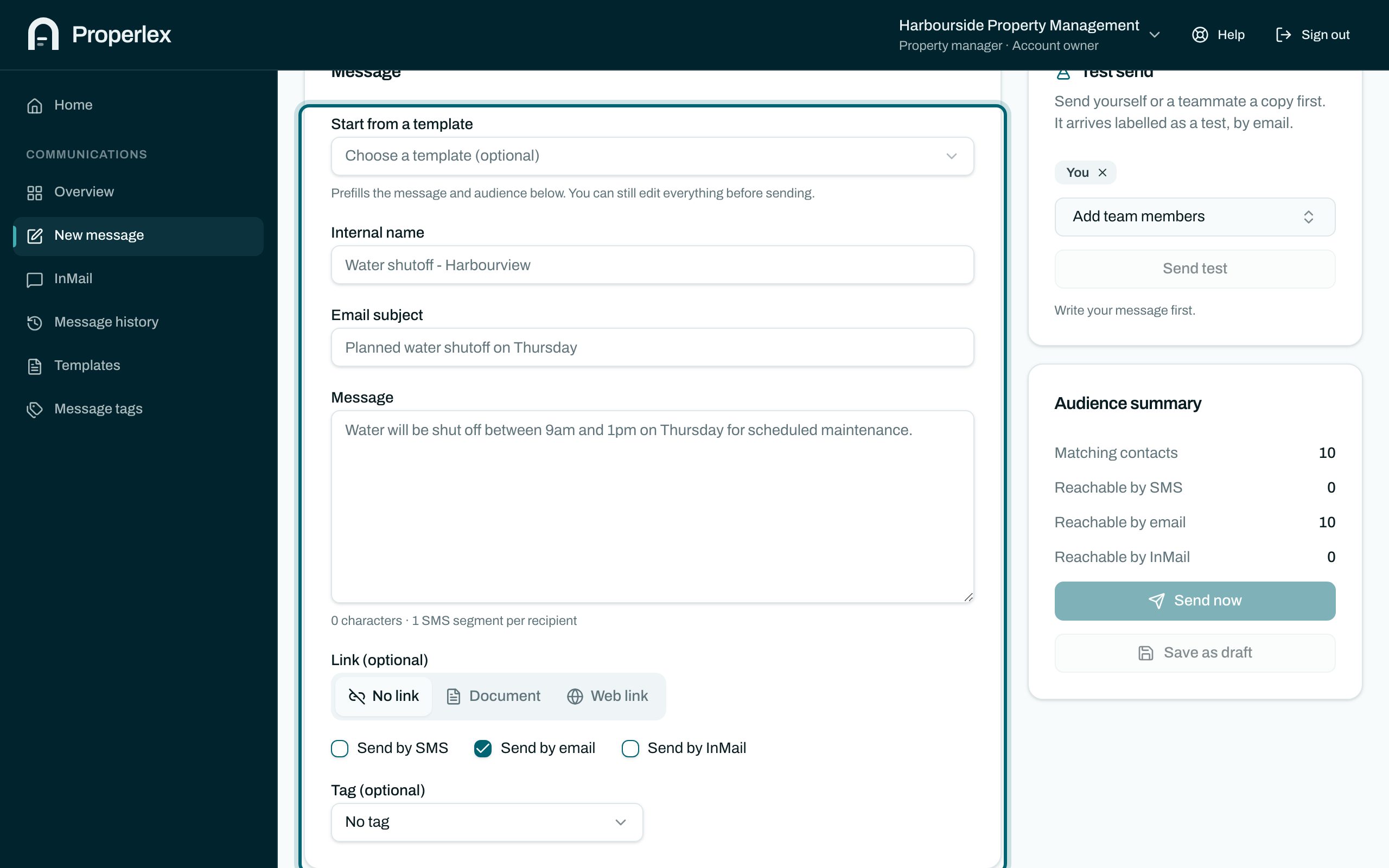
Optional: add a Link (optional) to a web page or a document.
Tick how to send it: Send by SMS, Send by email and/or Send by InMail.
Optional: choose a Tag (optional) for reporting.
Under Audience, choose the properties and recipient types. See Choose who receives a message.
Check the Audience summary: matching contacts, how many are reachable on each channel and the SMS cost.
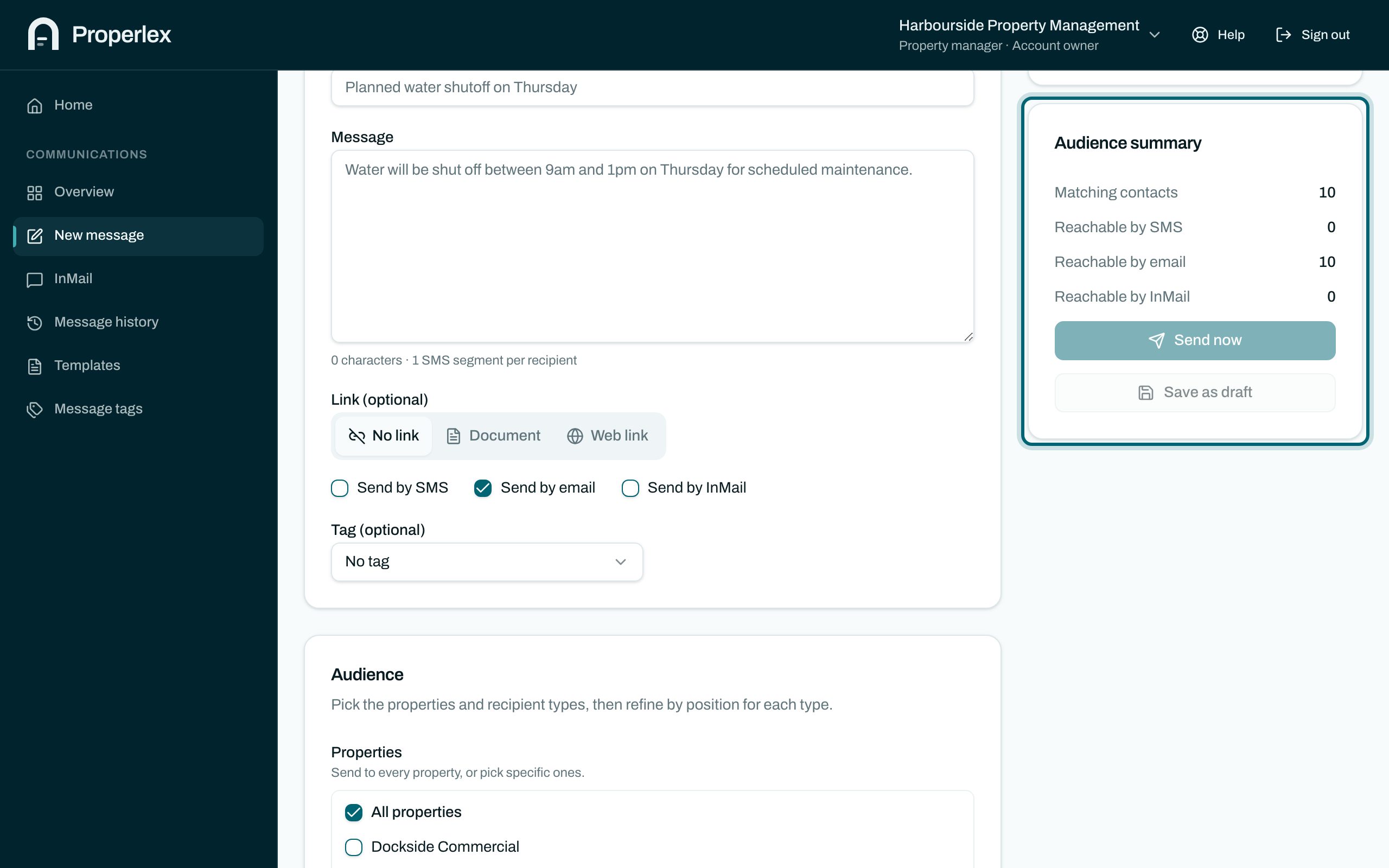
Select Send now.
What happens next
A progress window shows the messages going out. Larger audiences can take a little longer, so keep the window open.
The message appears in Message history with its delivery results. See Check who received a message.
Common problems
"Nobody in this audience is reachable on the selected channels." The contacts you chose don't have a mobile number or email for the channels you ticked. Tick another channel, or add their details.
I want to check it first. Send yourself a test. See Send a test message.
I need to finish it later. Select Save as draft. See Save a message as a draft.
Last checked against the app on .