Check who received a message
Go to Communications, then Message history, and select the message. Its report shows each recipient, the channel and whether it was delivered, opened or bounced.
- For
- Property managers
Every message you send has a report with a line for each recipient.
Before you start
You need the View sent SMS & emails control.
Steps
Go to Communications, then Message history.
Find the message. The list shows its Channels, Recipients, Status and when it was Sent.
Select it to open its report. Each line shows the Destination, Channel, Status and Sent time.
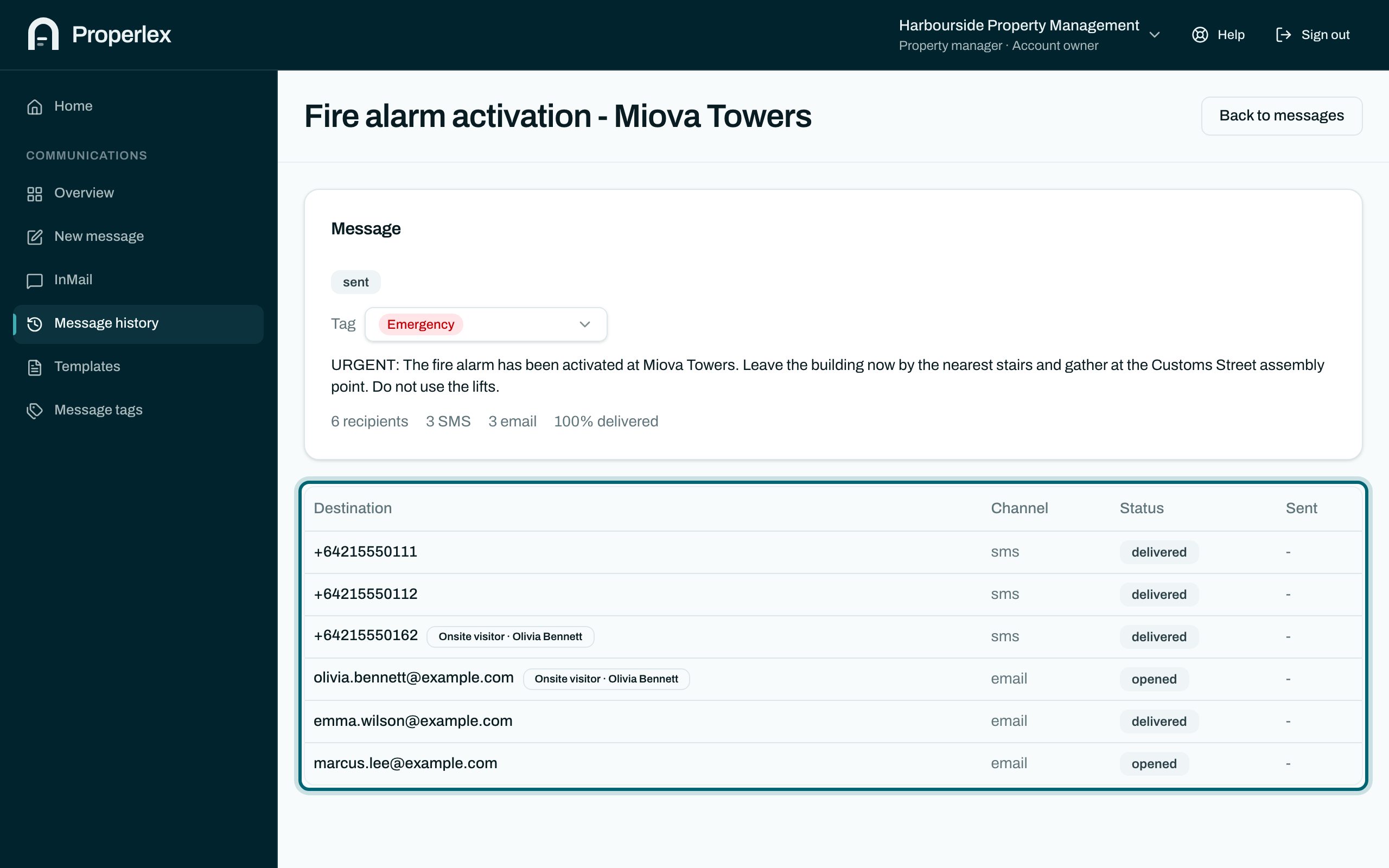
What the statuses mean
pending, queued or sent: it's on its way.
delivered: it reached their phone or inbox.
opened or clicked: they opened the email, or selected its link.
bounced: the email address didn't accept it, or they marked it as spam.
failed: it couldn't be sent.
Common problems
An email bounced. Check the contact's email address and update it. See Edit or delete a contact.
An email shows delivered but not opened. Many email apps block the signal that shows an email was opened, so treat opened as a guide only.
Last checked against the app on .