Save a message as a draft
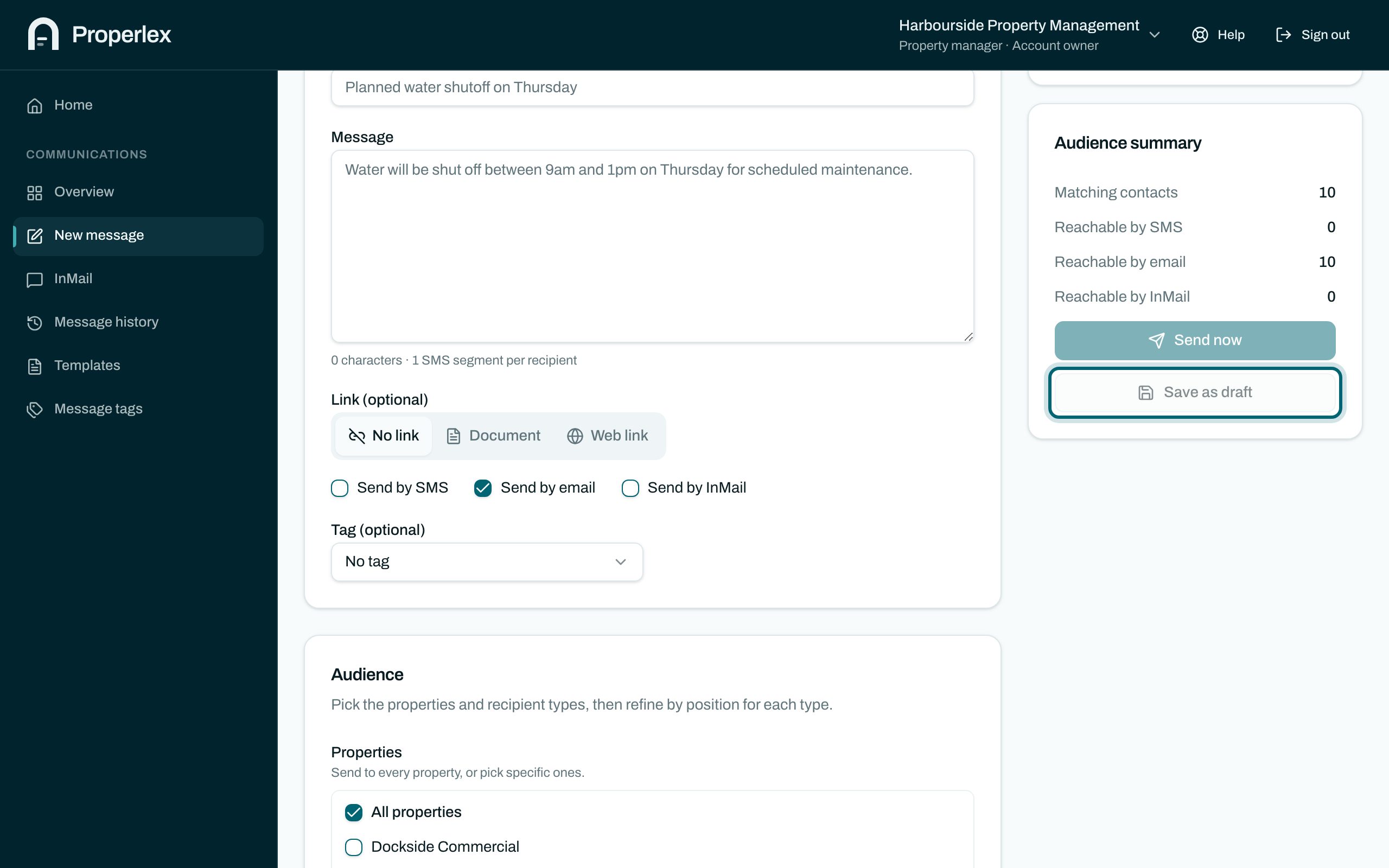
In New message, select Save as draft. Find it later in Message history, marked Draft, and select Continue editing to finish and send it.
- For
- Property managers
- Needs
- Sender or above
Save a message to finish or send later.
Steps
In New message, select Save as draft.
To come back to it, go to Communications, then Message history. Drafts are marked Draft.
Select it, then Continue editing.
Finish it and select Send now.
If you leave New message without saving, you're asked whether to save it as a draft.
Delete a draft
Select Delete draft, then Delete. A deleted draft can't be brought back.
Last checked against the app on .