Get started as a property manager
Set up your organisation, add your properties, invite your team, then add your tenants, vendors and partners. This guide walks through the order that works best.
- For
- Property managers
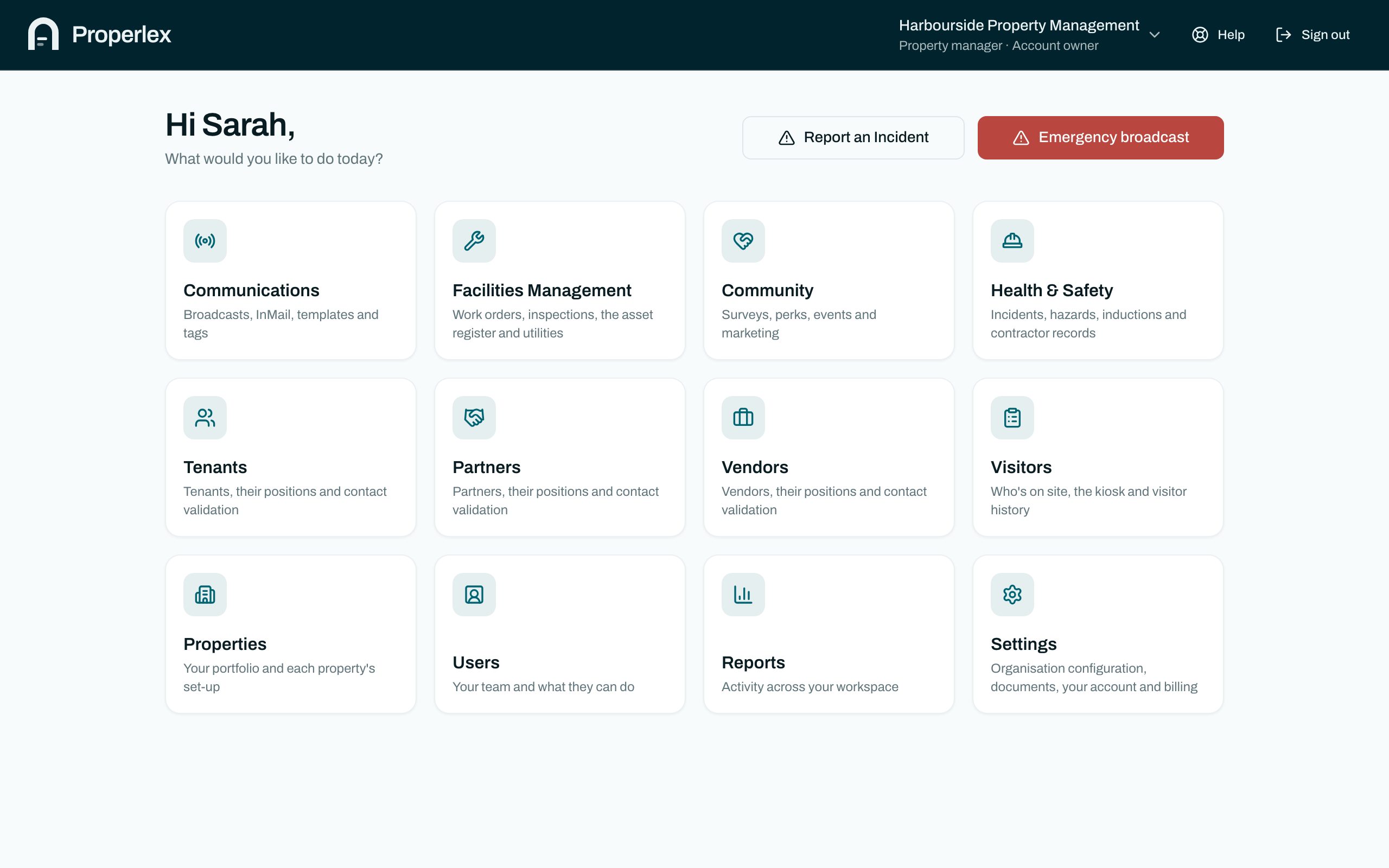
Your home page shows a card for each section you can use, such as Communications, Tenants and Properties. Work through the steps below once, in this order, and you're ready to send your first message.
Before you start
You need to be an Admin or the Account owner to change organisation settings and invite your team.
Steps
Set up your organisation. Go to Settings, then Organisation configuration. Check your sending address, default country, branding and message tags. See Set up your organisation.
Add your properties. Go to Properties, then Portfolio, and select Add property for each building or site. See Add a property.
Invite your team. Go to Users, then Team, and select Invite user. See Invite your team.
Add your contacts. Go to Tenants, Vendors or Partners and add people one at a time or upload a CSV. See Add a contact and Import contacts from a CSV.
Send your first message. Go to Communications, then New message. Send yourself a test first. See Send a message.
Finding your way around
Home (top of the menu) brings you back to the cards at any time.
Inside a section, the menu on the left lists that section's pages. Sections with several pages also have an Overview.
The Help button in the top bar opens guides for the page you're on. You can also press
?on your keyboard.
Common problems
I can't see a section, such as Work orders or Visitors. Either it isn't switched on for your organisation, or your access type doesn't include it. Ask an admin in your team to check your access under Users, then Team.
I can't see Settings or Users. These are for admins and the account owner. Ask one of them to make the change, or to change your access.
Last checked against the app on .