Import contacts from a CSV
Select CSV template to download the file, fill in one contact per row, then select Bulk upload, check the review and select Import.
- For
- Property managers
Upload a spreadsheet to add many contacts at once. Download the template first, so the columns are right.
Before you start
You need the Add tenant contacts, Add vendor contacts or Add partner contacts control.
Add your properties first. The
property_namecolumn must match a property's name.
Steps
Go to Tenants, Vendors or Partners.
Select CSV template to download the template.
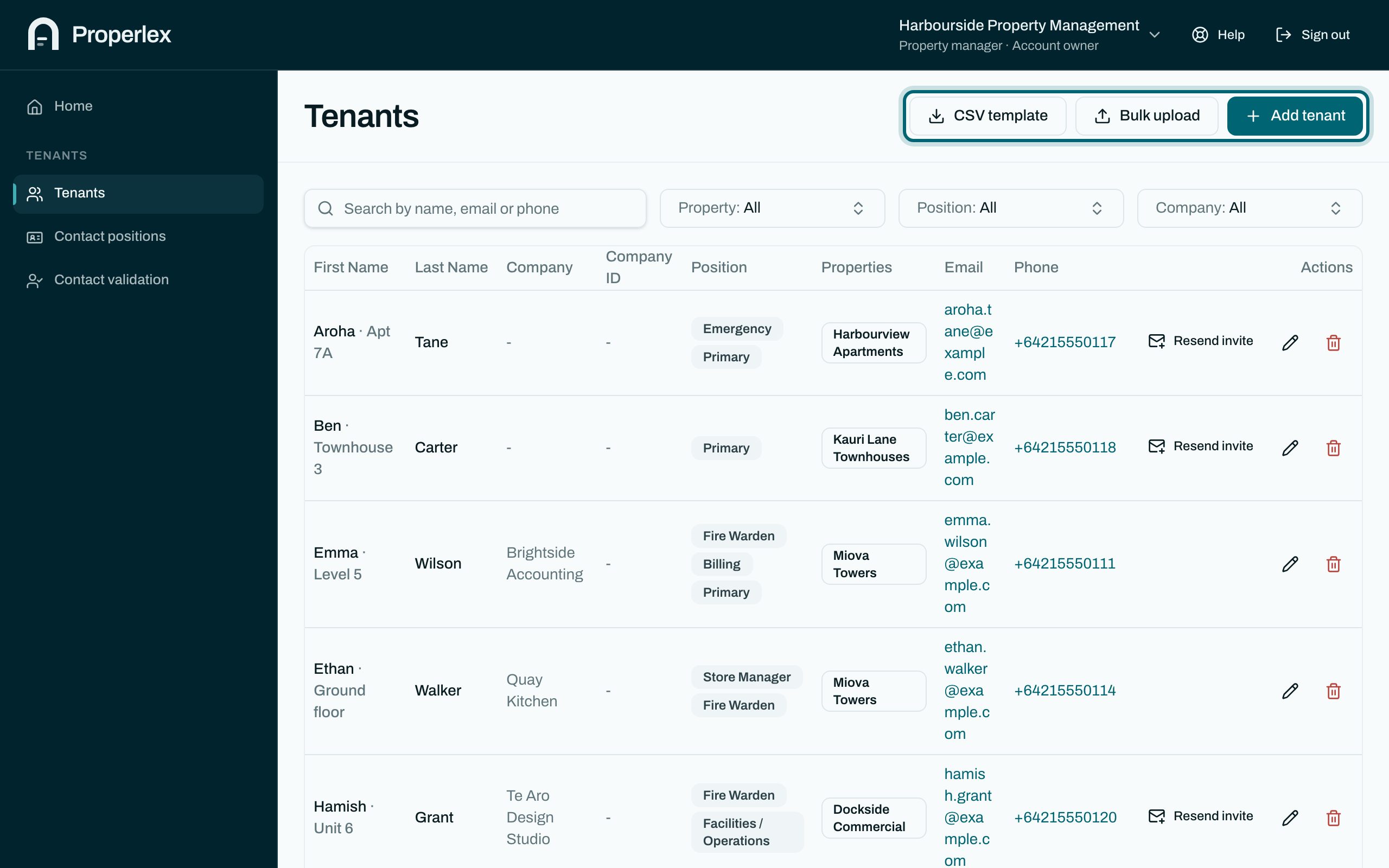
Fill in one contact per row. Each row needs a
first_name, and anemailorphone. To link a contact to more than one property, separate the names with a semicolon, for exampleRiverside Apartments; Garden Court.Save it as a CSV file.
Select Bulk upload and choose your file.
Check Review your upload. Rows that can't be imported are listed with the reason.
Select Import to add the valid rows.
Choose whether to email them invites now: Confirm and send invites, or Skip for now.
Common problems
A row was skipped. The review says why: no name, an email that isn't valid, no email or mobile number, or the same person twice.
"Missing a first_name column". The file's columns don't match the template. Download the template again and copy your data into it.
A property shows in red. The name doesn't match any of your properties. Check the spelling in property_name.
Last checked against the app on .