Invite your team
Go to Users, then Team, select Invite user, enter their email and choose an account type. They get an email with a link to join.
- For
- Property managers
- Needs
- Admin or above
Invite the people in your company who'll use the workspace. The account type you choose decides what they can see and do. You can change it later.
Before you start
You need to be an Admin or the Account owner.
Steps
Go to Users, then Team.
Select Invite user.
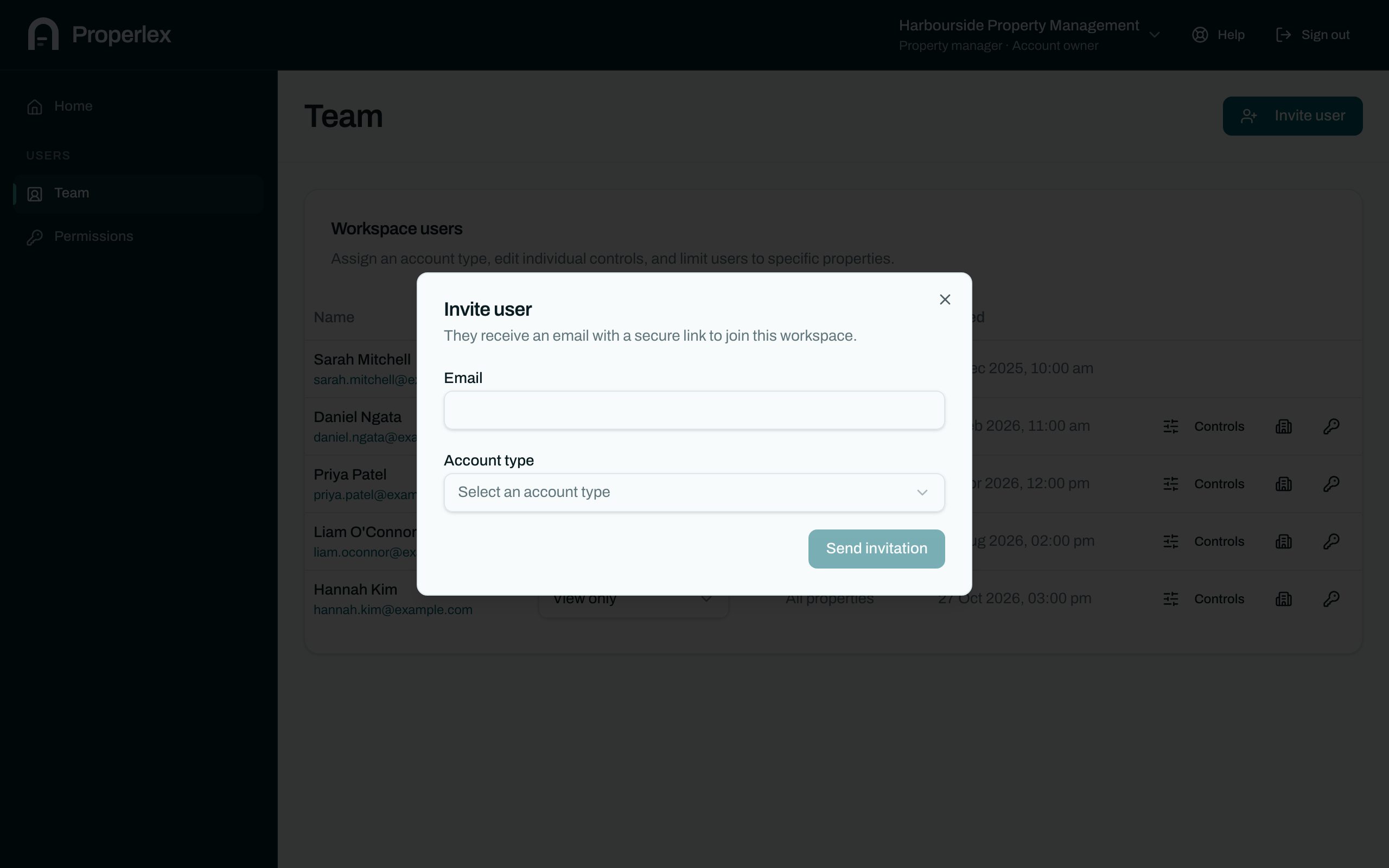
Enter their Email.
Choose an Account type, for example Sender or Admin.
Select Send invitation.
What happens next
They get an email with a secure link to join your workspace. The link expires in 14 days.
Until they accept, they're listed under Pending invitations. Once they accept, they move to Workspace users.
You can limit them to certain properties and fine-tune their controls. See Change what a team member can do.
Common problems
They didn't get the email. Ask them to check their junk folder. If it's still missing, delete the invitation under Pending invitations and send a new one.
Their invitation says Expired. Delete it and send a new one.
What do the account types mean? View only can see but not change. Manage contacts can also add and edit contacts. Sender can also send messages. Admin can also change settings and users. The Account owner can do everything.
Last checked against the app on .