Add a tenant, vendor or partner contact
Go to Tenants, Vendors or Partners, select Add tenant (or vendor, or partner), fill in their details and properties, then select Add contact.
- For
- Property managers
Add the people you send messages to. Each contact belongs to a company and one or more of your properties, and can hold positions such as Primary or Emergency.
Before you start
You need the Add tenant contacts, Add vendor contacts or Add partner contacts control.
Add the property first. See Add a property.
Steps
Go to Tenants, Vendors or Partners.
Select Add tenant (or Add vendor, or Add partner).
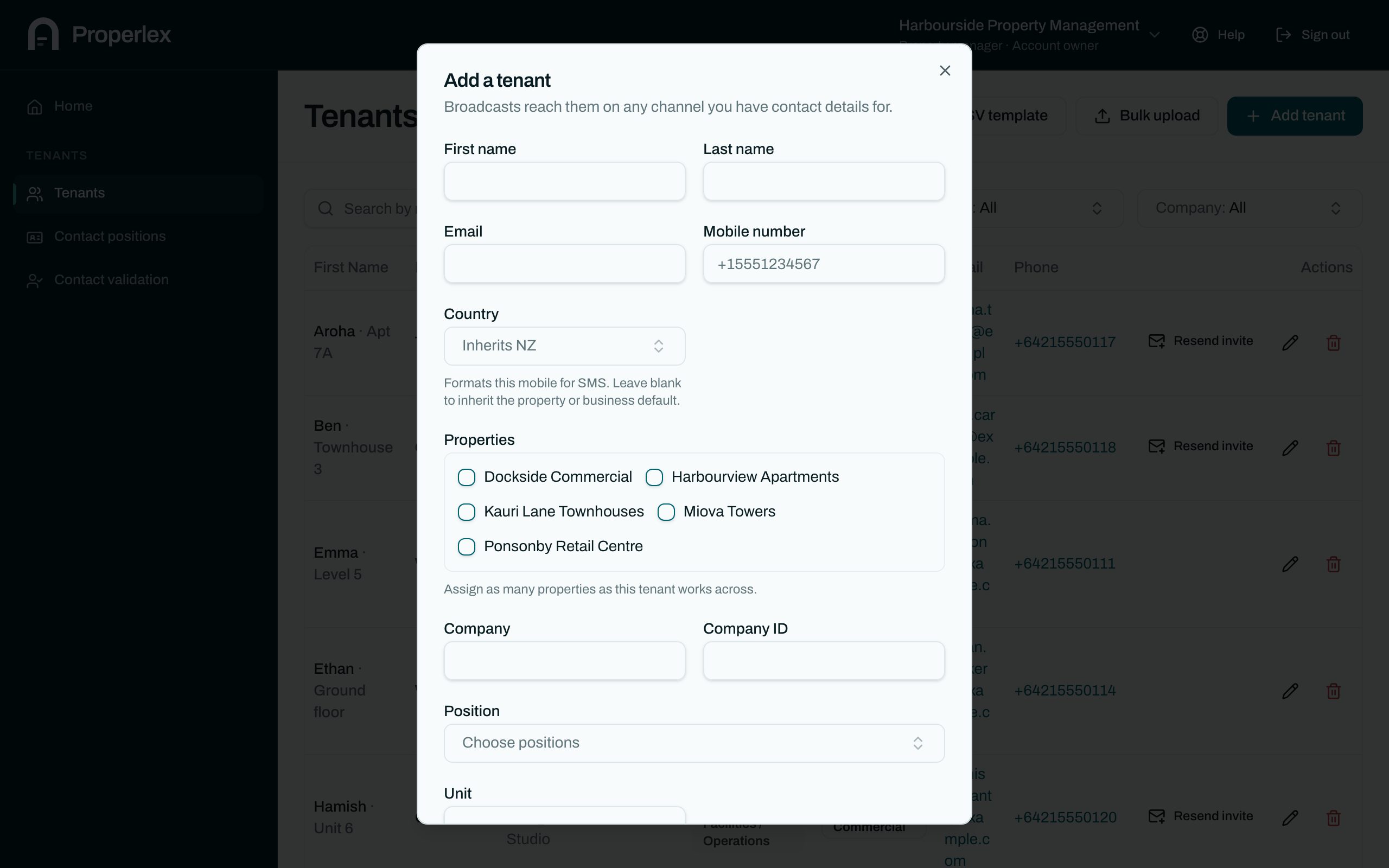
Enter their First name and Last name.
Add their Email and Mobile number. They need at least one to receive messages.
Under Properties, tick every property they work across.
Enter their Company, and for tenants their Unit.
Choose their Position, for example Primary or Emergency.
To invite them to their portal now, leave Email invite on. It needs an email address.
Select Add contact.
What happens next
They're added to your directory and included in messages sent to their properties and positions.
If you sent an invite, they get an email to set up their account. See Invite contacts to the portal.
Common problems
There are no positions to choose. Pick the contact's property first. If there are still none, add positions. See Set up contact positions.
Their mobile number looks wrong. Numbers are formatted using the contact's Country, or the property's or organisation's if it's blank. Set Country for contacts from another country.
Last checked against the app on .