Set up visitor sign-in at reception
Go to Visitors, then Visitor kiosk, choose the property and select Download sign-in poster. Visitors scan its QR code to sign in, or use the kiosk link on a tablet.
- For
- Property managers
- Needs
- Visitors switched on
Visitors sign themselves in at each property, from a poster with a QR code or a tablet at reception. Vendors with an account sign in the same way and complete any site induction.
Before you start
Visitors must be switched on for your organisation.
Steps
Go to Visitors, then Visitor kiosk.
Choose the Property.
Select Download sign-in poster. Print it and put it up at reception and other entrances.
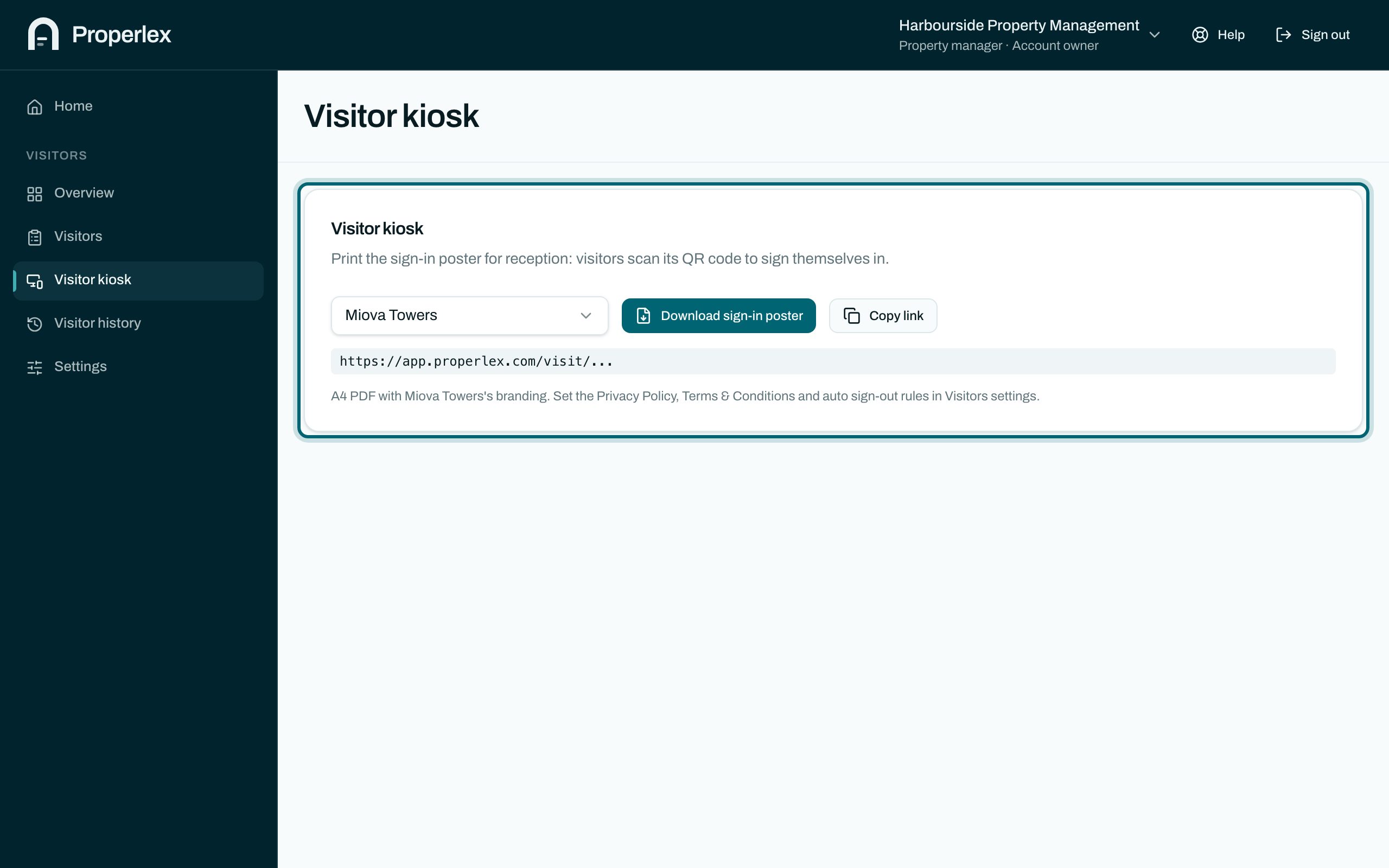
For a tablet at reception, select Copy link and open the kiosk link on the tablet.
What happens next
Visitors scan the code, choose Visitor or Contractor, and fill in their details.
The person they're visiting is emailed when they arrive.
Everyone signed in shows under Visitors. See See who's on site.
Common problems
A visitor can't find the person they're visiting. Only people on your team who work with that property are listed, unless they've hidden themselves. See Choose whether visitors can pick you.
I want visitors to accept our privacy policy. Set it under Visitors, then Settings. See Set visitor policies.
Last checked against the app on .