Sign in with a QR code or kiosk
Scan the sign-in QR code at the property, or use the kiosk at reception. Choose Contractor, log in with your vendor account and follow the steps.
- For
- Vendors
- Needs
- Visitors switched on
Many properties have a sign-in poster with a QR code, or a kiosk at reception. You can use either instead of your home page.
Steps
Scan the QR code with your phone's camera, or go to the kiosk.
Under Sign in, choose Contractor (here to do work, with a vendor account).
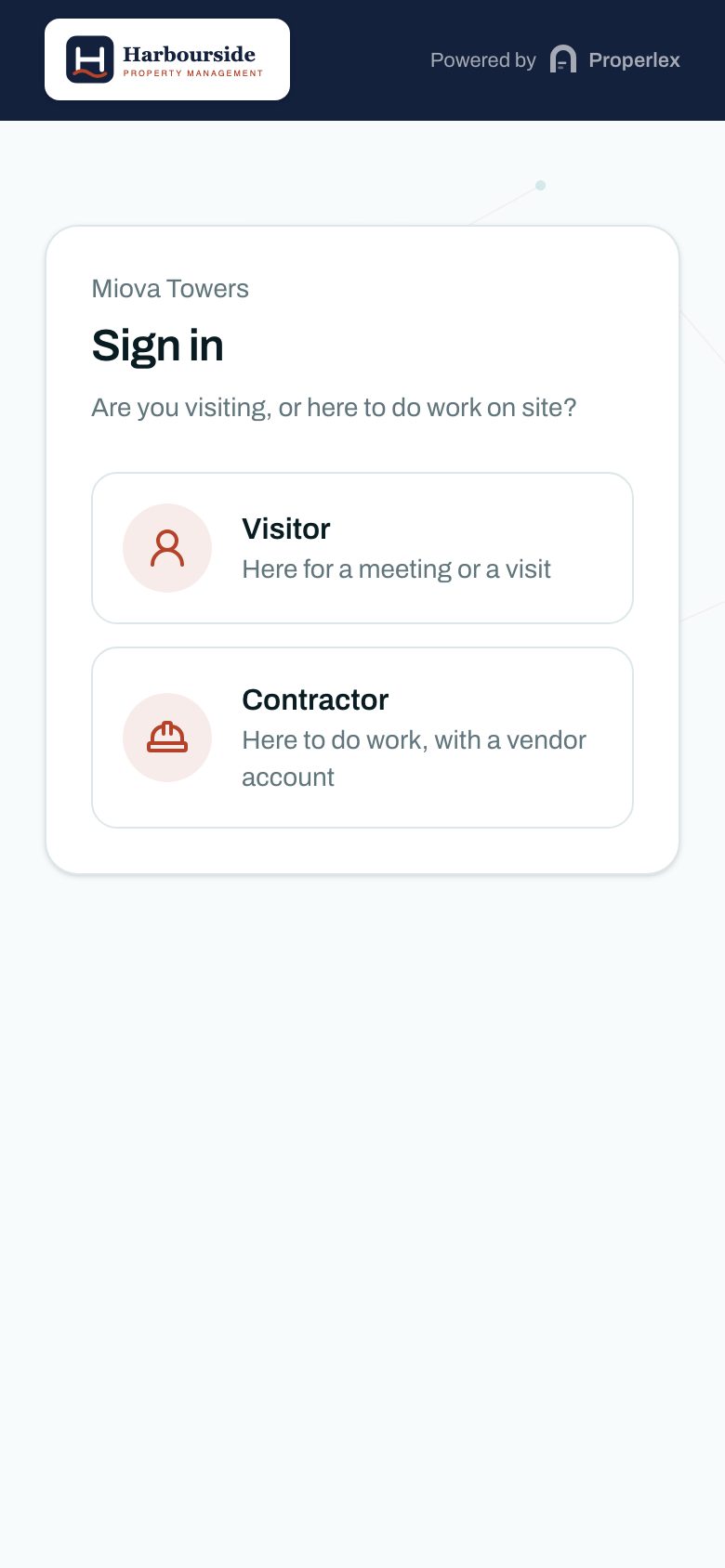
Log in with your vendor account's email and password.
Choose your company, who you're visiting and how long you expect to be on site, then select Next.
Complete any induction and hazard review. See Complete the site induction.
You'll see You're signed in. When you leave, sign out the same way, or from Sign In/Out on your home page.
Common problems
I don't have a vendor account. Ask the property manager to send you an invite. Until then, sign in as a Visitor.
I've forgotten my password. Reset it on your phone from the sign-in page. See Change or reset your password.
Last checked against the app on .