Set visitor policies
Go to Visitors, then Settings. Under Visitor policies, link to or enter your Privacy Policy and Terms & Conditions. Visitors see them when they sign in.
- For
- Property managers
- Needs
- Admin or above
- Visitors switched on
Your visitor sign-in form links to your Privacy Policy and Terms & Conditions, so visitors know how their details are used.
Before you start
You need to be an Admin or the Account owner.
Steps
Go to Visitors, then Settings.
Leave Managing settings for on Organisation (all properties) to set the policies for every property.
Under Visitor policies, for Privacy Policy and Terms & Conditions, choose:
Link to a web page, and enter its address, or
Enter the text, to show it in the sign-in form, or
None.
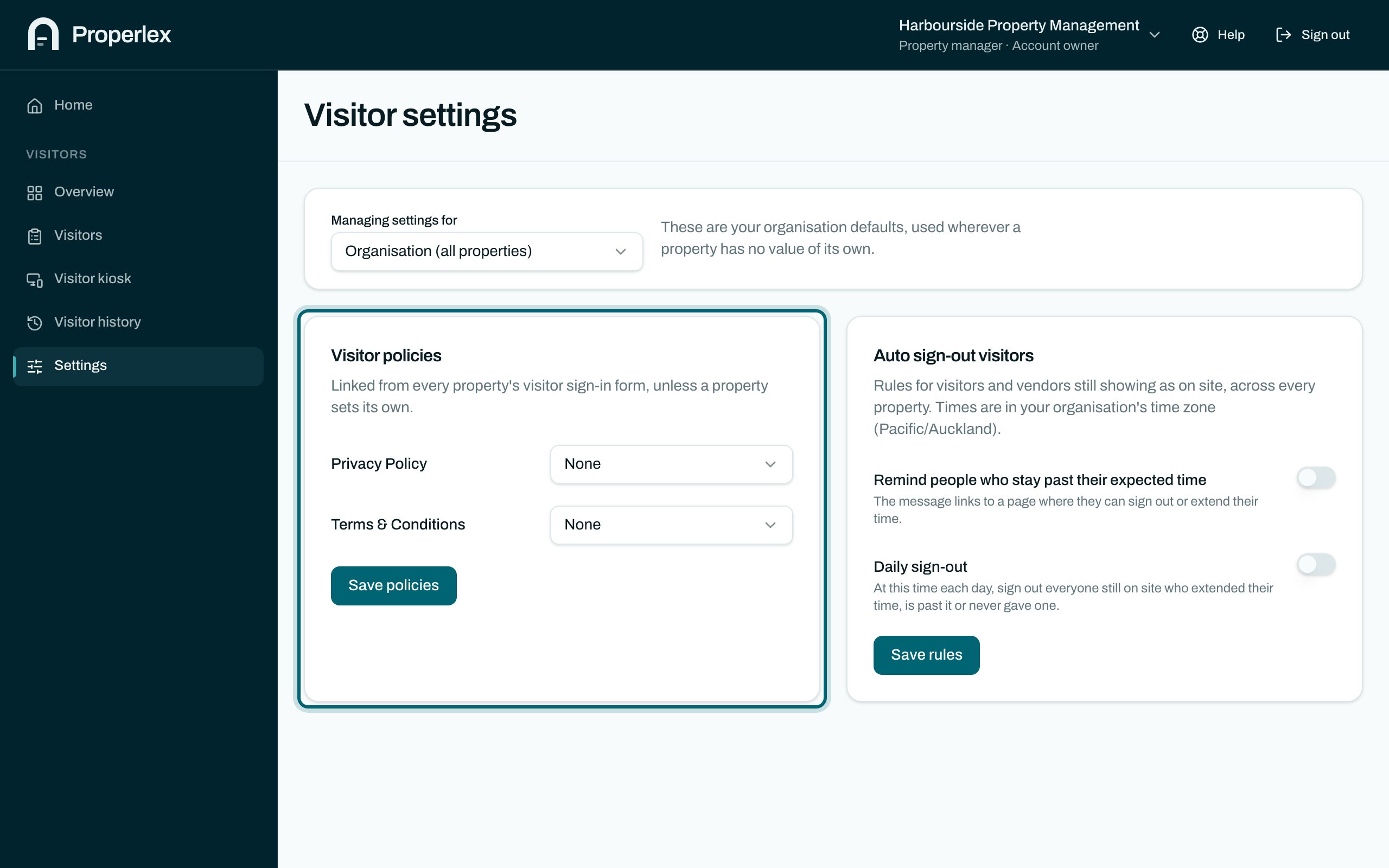
Select Save policies.
A different policy for one property
Choose the property in Managing settings for and set its policies. Leave a policy on Use the organisation's to keep the organisation's.
Last checked against the app on .