Invite contacts to the portal
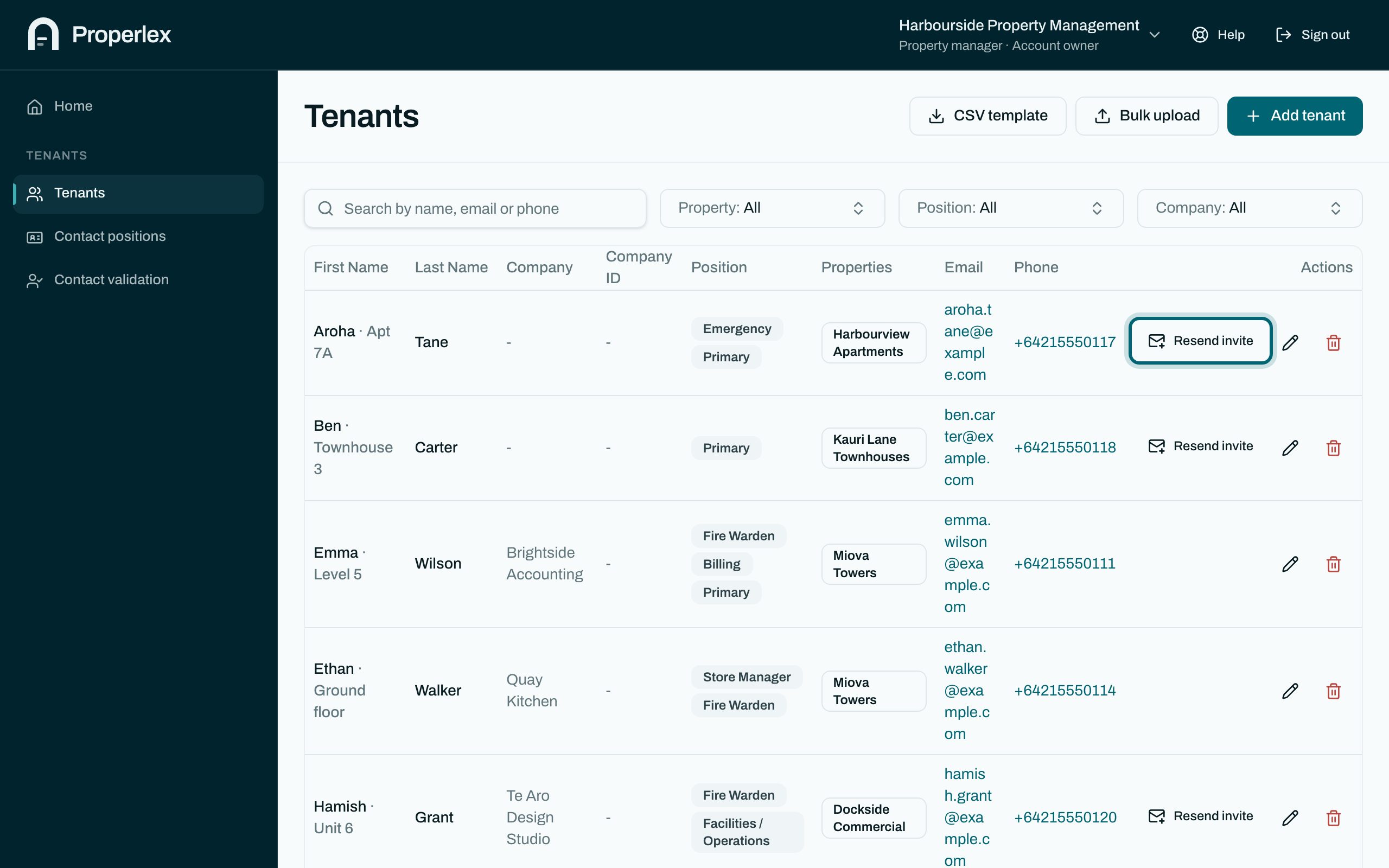
Leave Email invite on when you add a contact, or select Resend invite next to them in the directory. They get an email to set up their account.
- For
- Property managers
Inviting a contact gives them their own portal, branded with your colours. There they can message you, see property contacts, report incidents and more, depending on what you've switched on.
Before you start
The contact needs an email address.
Steps
When you add someone: leave Email invite on before you select Add contact.
For someone already in your directory:
Go to Tenants, Vendors or Partners.
Find the contact and select the invite icon (Resend invite) in the Actions column.
After a CSV upload: select Confirm and send invites at the end of the upload.
What happens next
They get an email inviting them to connect with your organisation. The link expires in 14 days.
When they accept, they set a password and land on their portal home page.
What they see depends on their position. See Control what a position can see.
Common problems
Their link has expired. Select Resend invite to send a new one.
They say they never got it. Ask them to check their junk folder, and check the email address on their contact.
Last checked against the app on .