Send a work order to a vendor
Open the work order, select Send to vendor, choose the vendor and the contact to email, and send. Everyone at the vendor company can see it in their portal.
- For
- Property managers
- Needs
- Work orders switched on
Sending a work order emails the vendor contact you choose. Everyone at that vendor company can then open it in their portal, accept it and start the work.
Before you start
You need the Create, send and sign off work orders control.
The vendor company must be connected to the work order's property. See Add a contact.
Steps
Go to Facilities Management, then Work orders, and open the work order.
Select Send to vendor.
Choose the vendor in Choose a vendor.
Under Email it to, choose the contact who should get the email.
Select Send.
What happens next
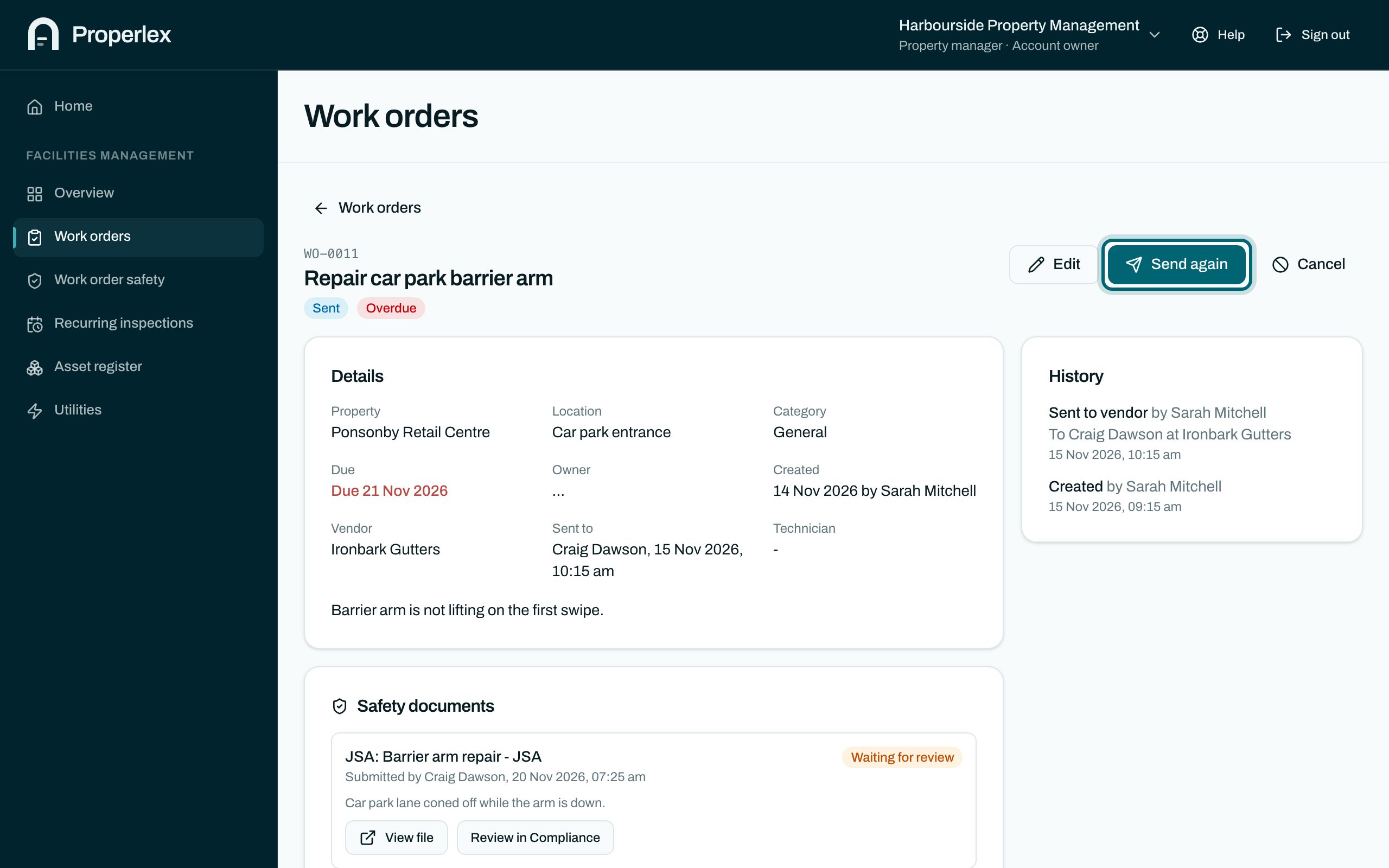
The status changes to Sent, and the vendor contact gets an email.
When the vendor accepts, declines or finishes, the work order's Owner hears about it.
Common problems
"No vendor companies are connected to this property yet." Add the vendor as a contact and tick this property for them, then send it.
I need a different vendor. Select Send again and choose another vendor.
"Sent, but the email couldn't be delivered." The vendor can still see it in their portal. Check the contact's email address.
Last checked against the app on .