See your work orders
Select Work Orders on your home page. Jobs are grouped as New, To do, Waiting for sign-off and Finished. Select one to see the details, checklist and photos.
- For
- Vendors
- Needs
- Work orders switched on
When your property manager sends a job to your company, its contact gets an email, and everyone at your company can see it under Work Orders.
Steps
On your home page, select Work Orders.
Jobs are grouped:
New: waiting for you to accept or decline.
To do: accepted or in progress.
Waiting for sign-off: you've marked it complete.
Finished: signed off, cancelled or declined. Select Show finished work orders to see them.
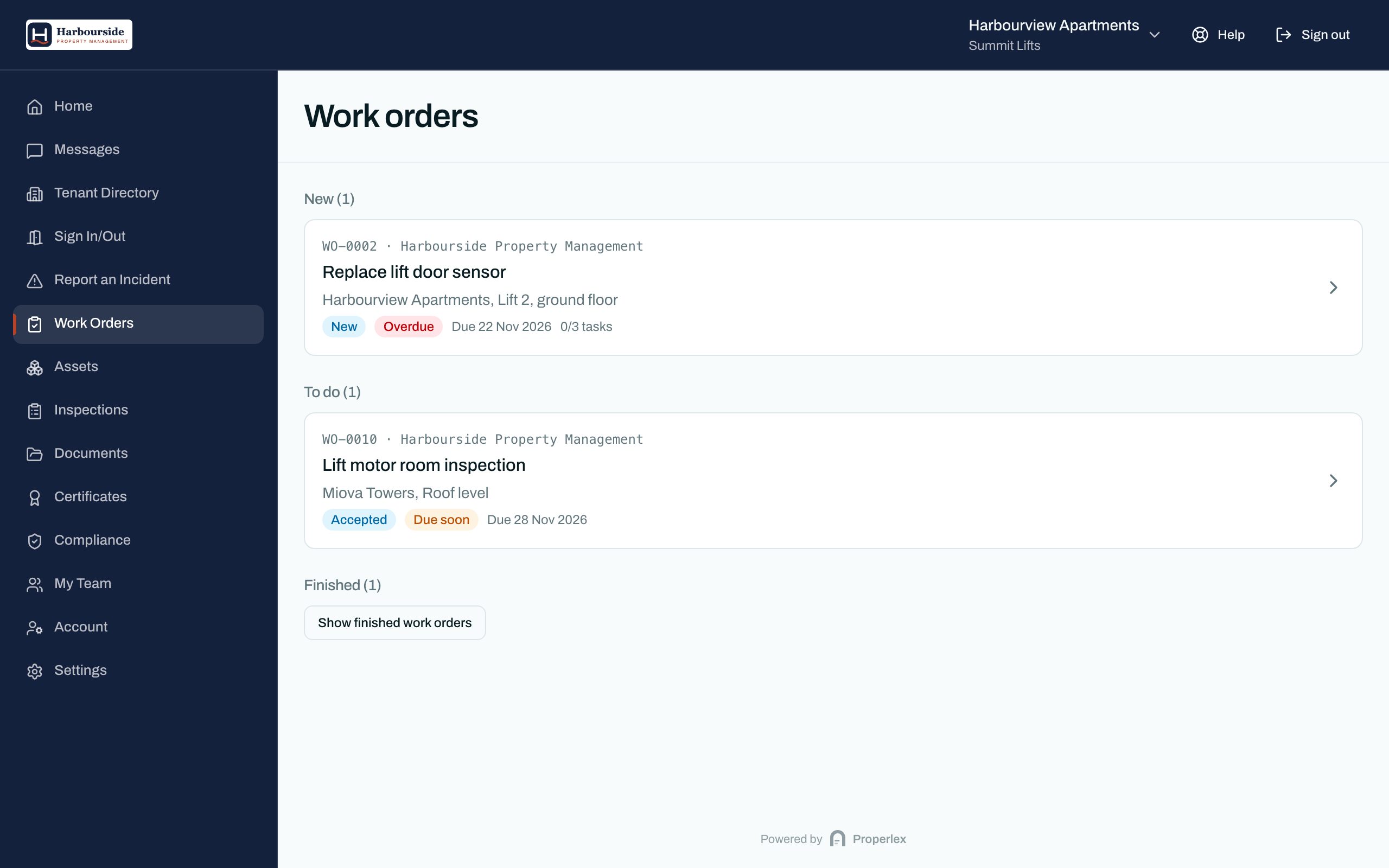
Select a work order to see the Property, Location, Due date, Category, Equipment, the description, the Checklist and Photos.
Common problems
"No work orders have been sent to your company yet." Your property manager hasn't sent you one, or sent it to another company. Check with them.
I can't see Work Orders. Your property manager hasn't switched on work orders at your property.
Last checked against the app on .