Create a work order
Go to Facilities Management, then Work orders, select New work order, fill in the job and select Create draft. Then send it to a vendor.
- For
- Property managers
- Needs
- Work orders switched on
A work order is a job for a vendor, from the request through to sign-off. You create it as a draft, then send it when it's ready.
Before you start
You need the Create, send and sign off work orders control.
Work orders must be switched on for your organisation.
Steps
Go to Facilities Management, then Work orders.
Select New work order.
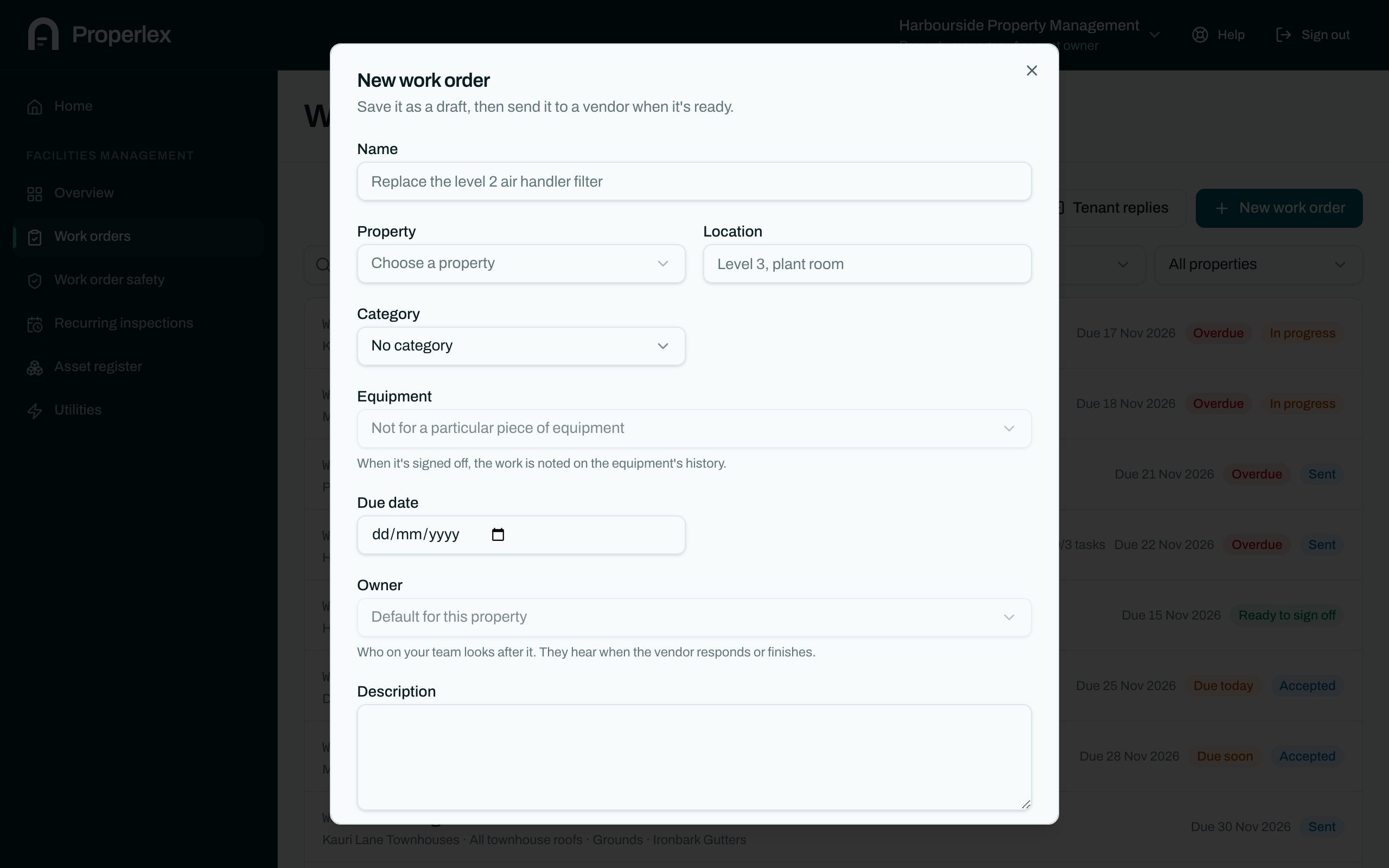
Give it a Name, for example "Replace the level 2 air handler filter".
Choose the Property and enter the Location, for example "Level 3, plant room".
Optional: choose a Category and the Equipment it's for. When it's signed off, the work is noted on the equipment's history.
Set a Due date.
Choose the Owner: who on your team looks after it. They hear when the vendor responds or finishes.
Choose the Vendor if you know who'll do it. Nothing is sent yet.
Write a Description, and add a Checklist of tasks. See Add a checklist to a work order.
Select Create draft.
What happens next
The work order gets a number, for example WO-0007, and shows as Draft. When it's ready, send it. See Send a work order to a vendor.
Common problems
New work order is greyed out. There are no properties you can work with. Add a property, or ask an admin to check your property access.
Last checked against the app on .