Track work orders
In Work orders, use the filters (Open, Assigned to me, With vendor, Ready to sign off, Overdue) and open a work order to see its status, checklist, photos and history.
- For
- Property managers
- Needs
- Work orders switched on
The Work orders list shows every job and where it's up to.
Steps
Go to Facilities Management, then Work orders.
Choose a filter: Open, Assigned to me, With vendor, Ready to sign off, Overdue or All. Narrow it by property, or use Search work orders.
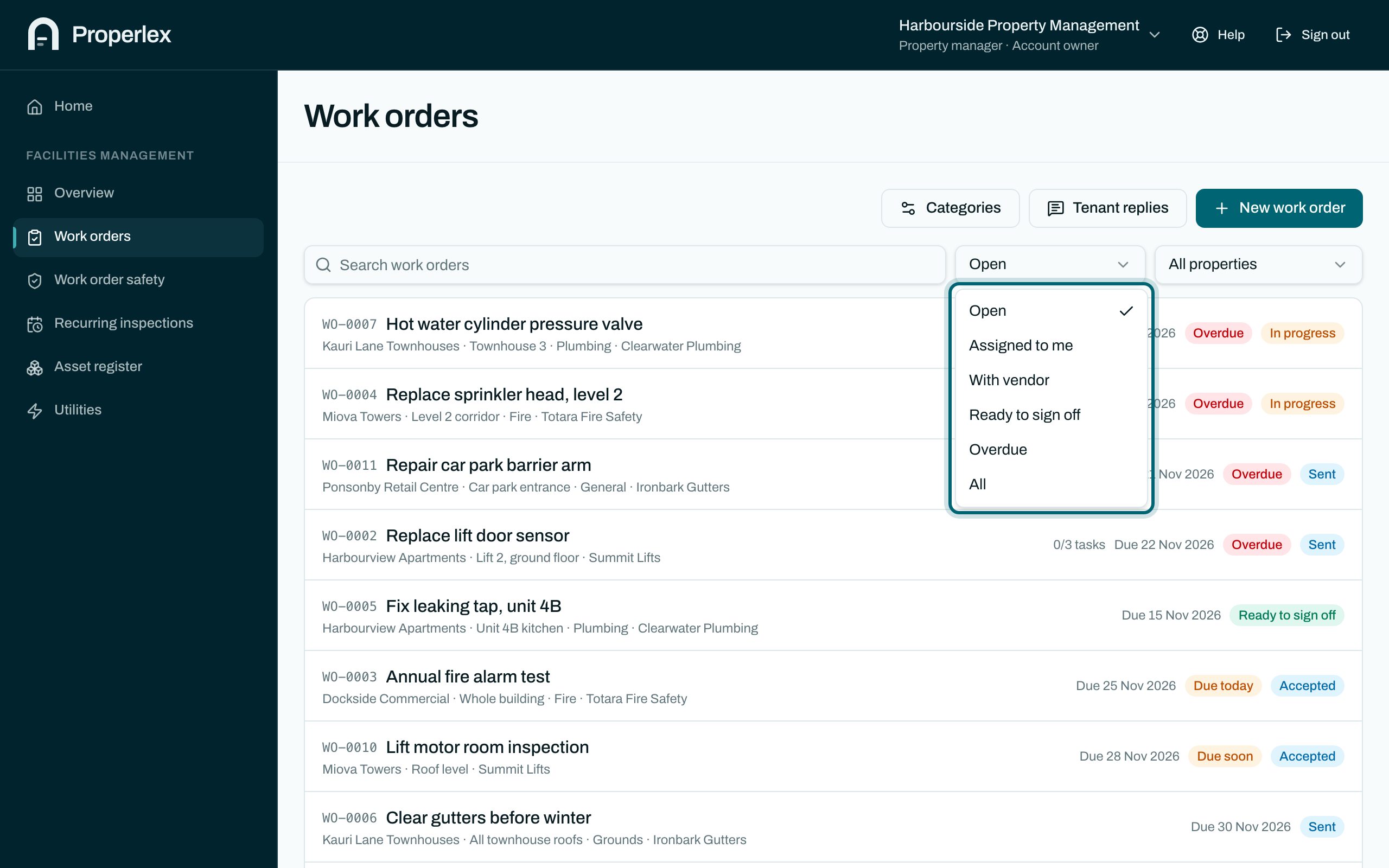
Open a work order to see its Details, Checklist, Photos and History.
What the statuses mean
Draft: not sent yet.
Sent: waiting for the vendor to accept.
Accepted or Declined: the vendor's answer.
In progress: the vendor has started.
Ready to sign off: the vendor has marked it complete.
Closed: signed off.
Cancelled: stopped.
Due dates show as Due soon, Due today or Overdue.
Common problems
A vendor declined. Open it to see their reason, then select Send again to send it to someone else.
Last checked against the app on .