Manage a property
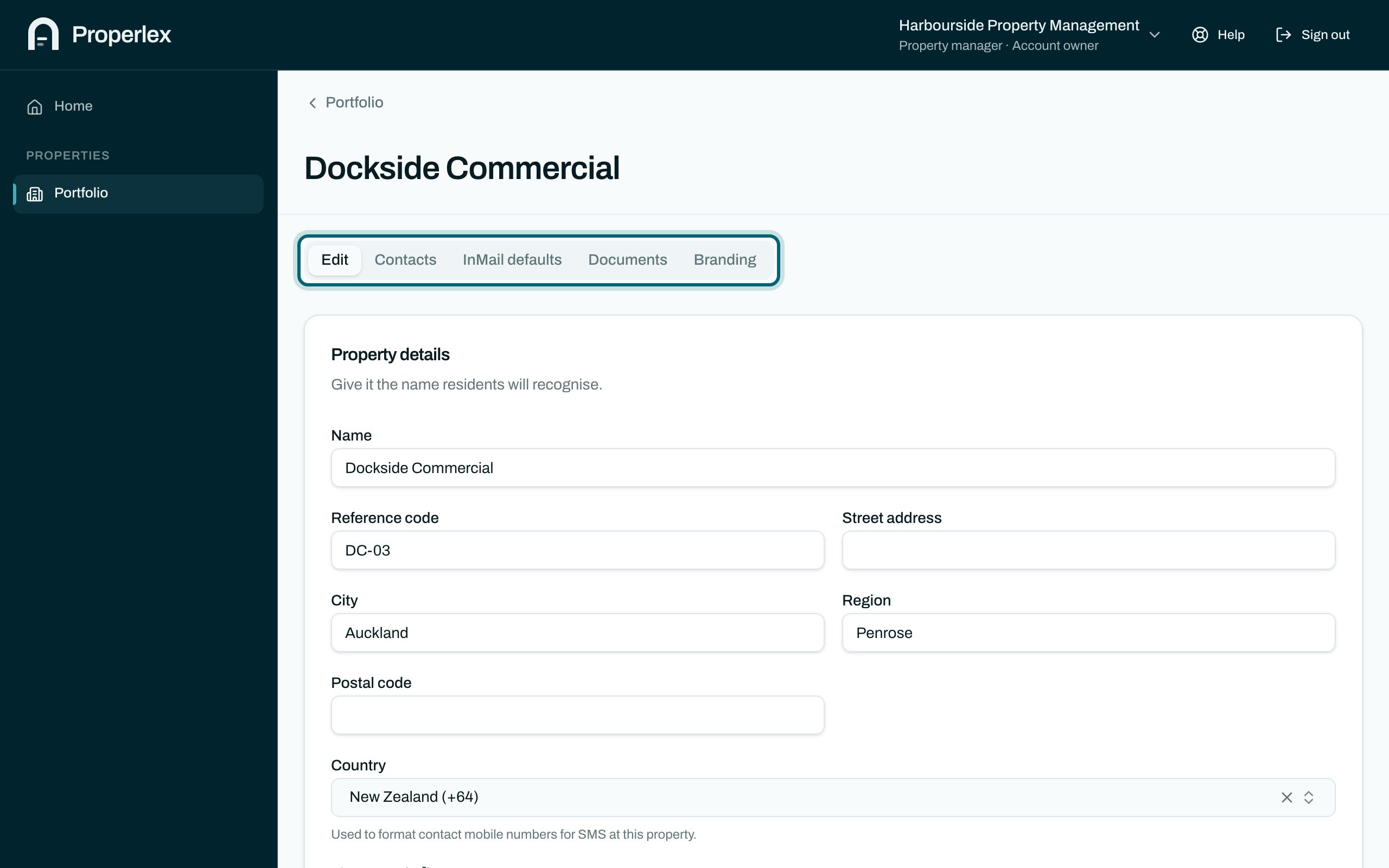
Go to Properties, then Portfolio, and select Manage next to a property to edit its details, contacts, InMail defaults, documents and branding.
- For
- Property managers
Everything set for one property is in one place, with a tab for each area.
Before you start
To change a property you need the Edit property details & default contacts control.
Steps
Go to Properties, then Portfolio.
Select Manage next to the property.
Choose a tab:
Edit: the name, reference code, address, country and floor area.
Contacts: the people tenants, vendors and partners contact at this property.
InMail defaults: who new InMail conversations go to, and the help support contact.
Documents: documents for this property.
Branding: this property's own logo and colours (admins only).
Make your changes and save.
Common problems
What's the floor area for? It's optional. Utilities use it to show consumption per square metre.
How do I remove a property? On the Edit tab, select Remove property. It moves to Removed properties on the Portfolio page, where you can restore it for 12 months.
Last checked against the app on .