Set your branding
In Organisation configuration, under Branding, upload your logo, choose your colours and add an email signature. Your tenants, vendors and partners see it in their portal and emails.
- For
- Property managers
- Needs
- Admin or above
Your branding is used in the tenant, vendor and partner portals and in every email you send. A property can have its own branding, which replaces the organisation's for that property.
Before you start
You need to be an Admin or the Account owner.
Logos can be PNG, JPG, WebP, SVG or GIF, up to 2 MB.
Steps
Go to Settings, then Organisation configuration.
Under Branding, select Upload logo and choose your logo file.
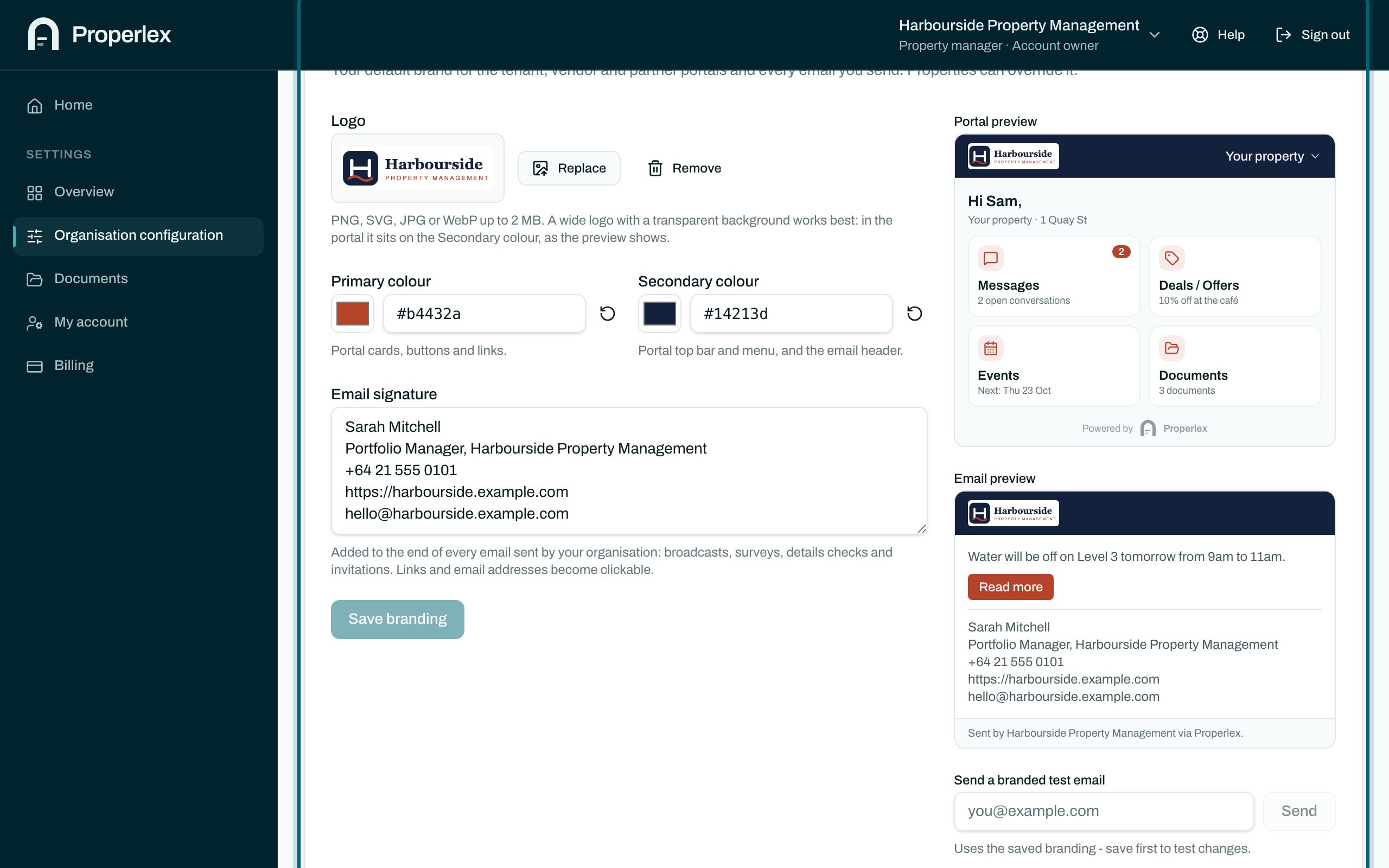
Choose your Primary colour (the portal top bar and menu, and the email header) and Secondary colour (portal cards, buttons and links).
Add your Email signature, for example your company name, phone number and website.
Check the Portal preview and Email preview, then save.
Branding for one property
Go to Properties, then Portfolio, and select Manage next to the property.
Open the Branding tab.
Set only what's different for this property. Anything you leave blank uses the organisation's branding.
What happens next
Portals and emails use the new branding straight away. You can send yourself a branded test email from the Branding card to check it.
Common problems
My logo won't upload. Check it's under 2 MB and is a PNG, JPG, WebP, SVG or GIF.
I can't see the Branding tab on a property. It's only shown to admins and the account owner.
Last checked against the app on .