Add a checklist to a work order
When creating or editing a work order, add tasks under Checklist. The vendor ticks each one off as they go, with photos if they want.
- For
- Property managers
- Needs
- Work orders switched on
A checklist tells the vendor exactly what's needed. They tick off every task before they can mark the work complete, so you can check it all at sign-off.
Steps
Open New work order, or open a work order and select Edit.
Under Checklist, select Add task and describe it.
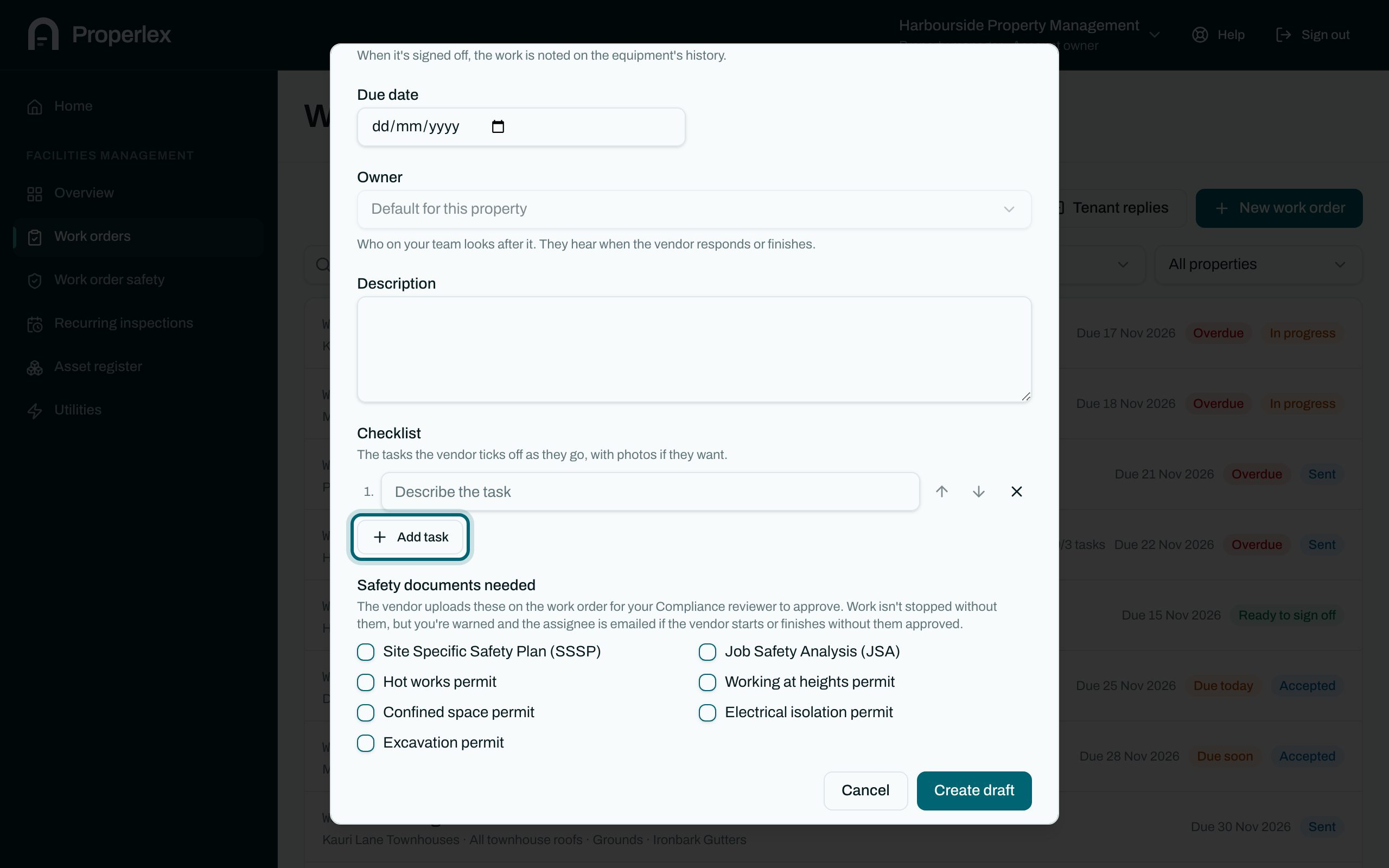
Add as many tasks as you need. Use Move up and Move down to reorder them, or Remove task to take one out.
Save.
What happens next
The vendor sees the tasks on the work order and ticks each one off, adding photos where useful.
On the work order, Checklist shows what's done and Photos shows the photos.
Common problems
Can I change the checklist after sending? Yes. Select Edit. Changes show to the vendor straight away.
Last checked against the app on .