Add a meter
Go to Facilities Management, then Utilities, and select Add meter. Say what it measures, how it's read, who reads it and how often.
- For
- Property managers
- Needs
- Utilities switched on
Add each utility meter so readings, use, cost and emissions can be tracked.
Before you start
You need the Set up meters control.
Utilities must be switched on for your organisation.
Steps
Go to Facilities Management, then Utilities, and select Add meter.
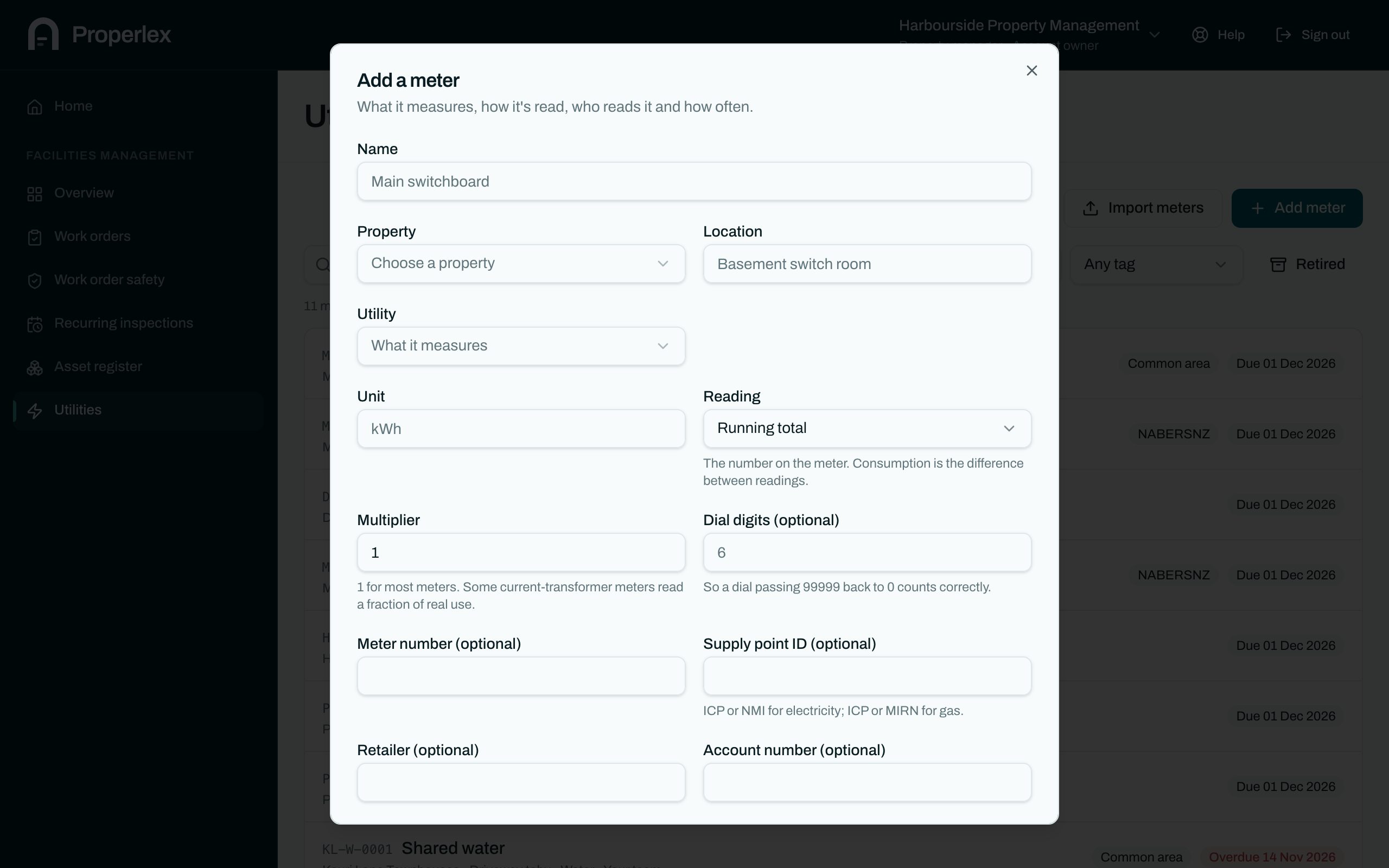
Enter the Name, Property and Location.
Choose the Utility (electricity, gas, water, solar generation, LPG, diesel or other) and the Unit, such as kWh.
Choose how it's read: a running total, or the consumption each time. Set the Multiplier and Dial digits (optional) if the meter needs them.
Optional: add the Meter number, Supply point ID (ICP or NMI for electricity, ICP or MIRN for gas), Retailer, Account number and Rate, for estimated cost in reports.
To make it a sub-meter, choose its Main meter (optional).
Choose who reads it under Read by: your team, or a vendor, partner or tenant at the property. Set How often and the Next reading due.
Optional: tick Require a photo with each reading, link an Asset, and add Tags.
Select Add meter.
Last checked against the app on .