Enter a meter reading
Open the meter in Utilities and select Add reading. Enter the date and reading, add a photo if needed, and select Save.
- For
- Property managers
- Needs
- Utilities switched on
Before you start
You need the Enter meter readings control.
Steps
Go to Facilities Management, then Utilities, and open the meter.
Under Readings, select Add reading.
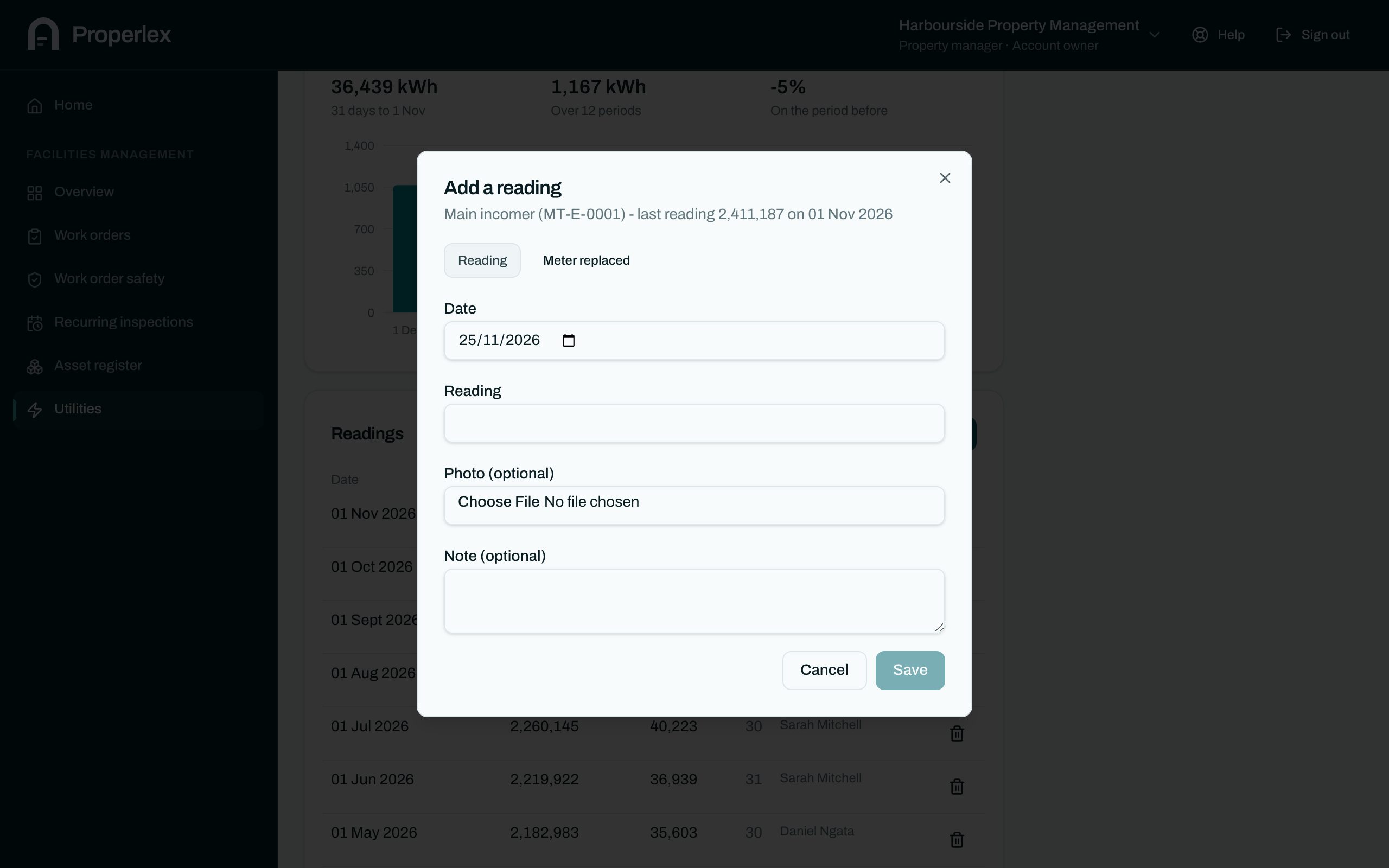
Enter the date and the Reading (or the Amount used, for a meter read by consumption).
Add a photo if the meter needs one.
Select Save. You'll see how much was used since the last reading.
Common problems
It says the reading looks unusual. Check it. If it's right, select Save anyway. It's flagged for the property manager.
The meter was replaced. In Add reading, switch from Reading to Meter replaced. Enter the Final reading on the old meter (optional) and the Starting reading on the new meter.
Last checked against the app on .