Mark a work order complete
When every task is ticked off, select Mark complete, add a note for the property manager and confirm. They check it and sign it off.
- For
- Vendors
- Needs
- Work orders switched on
Mark the job complete when the work is done. Your property manager checks the tasks and photos, then signs it off.
Steps
Open the job from Work Orders.
Tick off every task in the Checklist, and add photos of the finished work.
Select Mark complete.
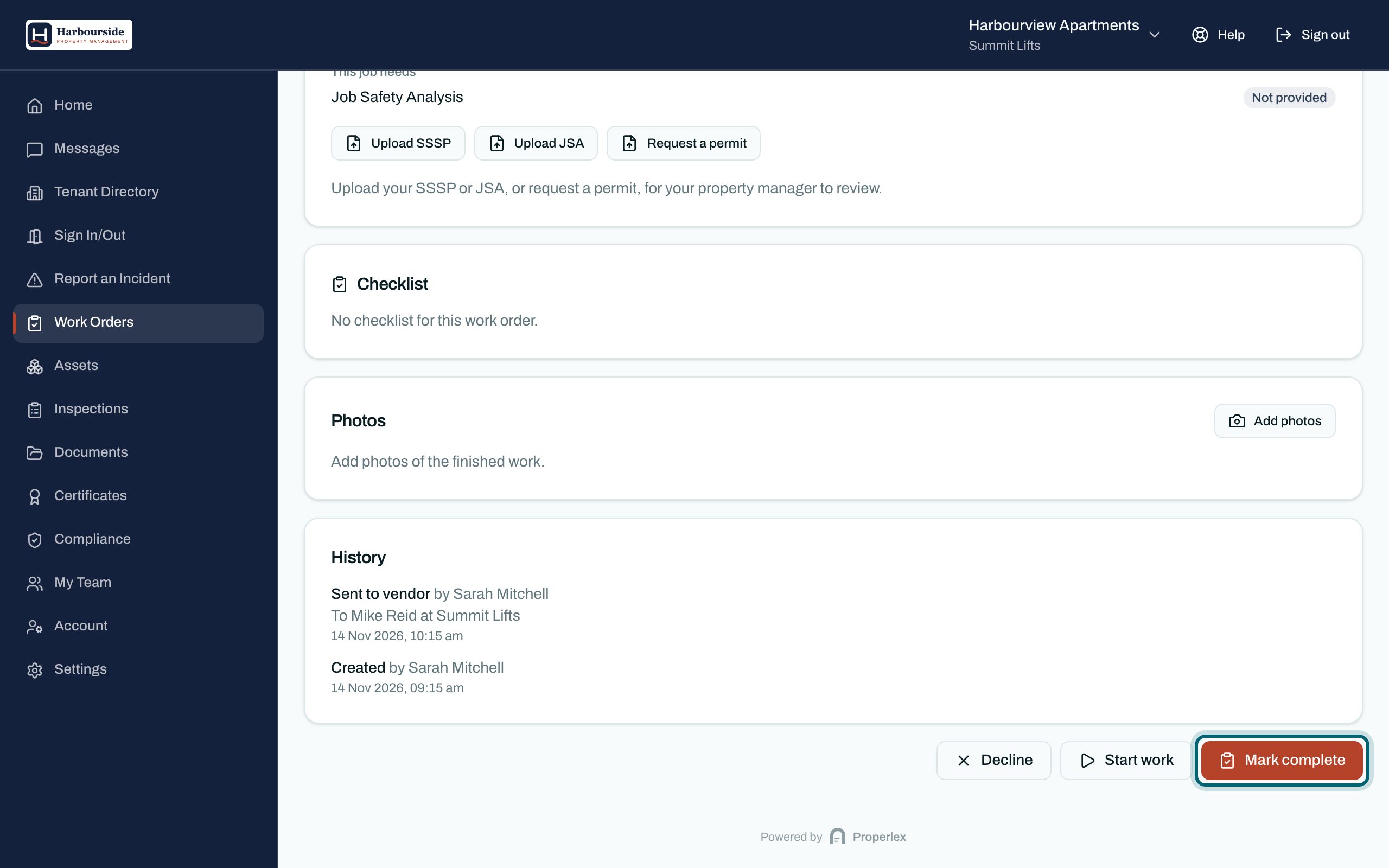
Add a Note for the property manager if there's anything they should know.
Confirm.
What happens next
The job moves to Waiting for sign-off.
When your property manager signs it off, it moves to Finished.
If something still needs doing, they send it back. It returns to To do, and you're emailed what's needed.
Common problems
The button says "Tick off every task first". Some tasks in the checklist aren't ticked yet.
Last checked against the app on .