Review vendor insurance and certificates
Go to Health & Safety, then Verifications. Open a document a vendor has sent, check it, then select Approve, or Reject with a reason the vendor will see.
- For
- Property managers
- Needs
- Contractor compliance switched on
Vendors upload their company details, insurance, licences and certificates. Your reviewer checks and approves each one.
Before you start
You need the Review vendor documents control.
Steps
Go to Health & Safety, then Verifications.
Filter by Property, Document type, vendor, Expiry or date submitted.
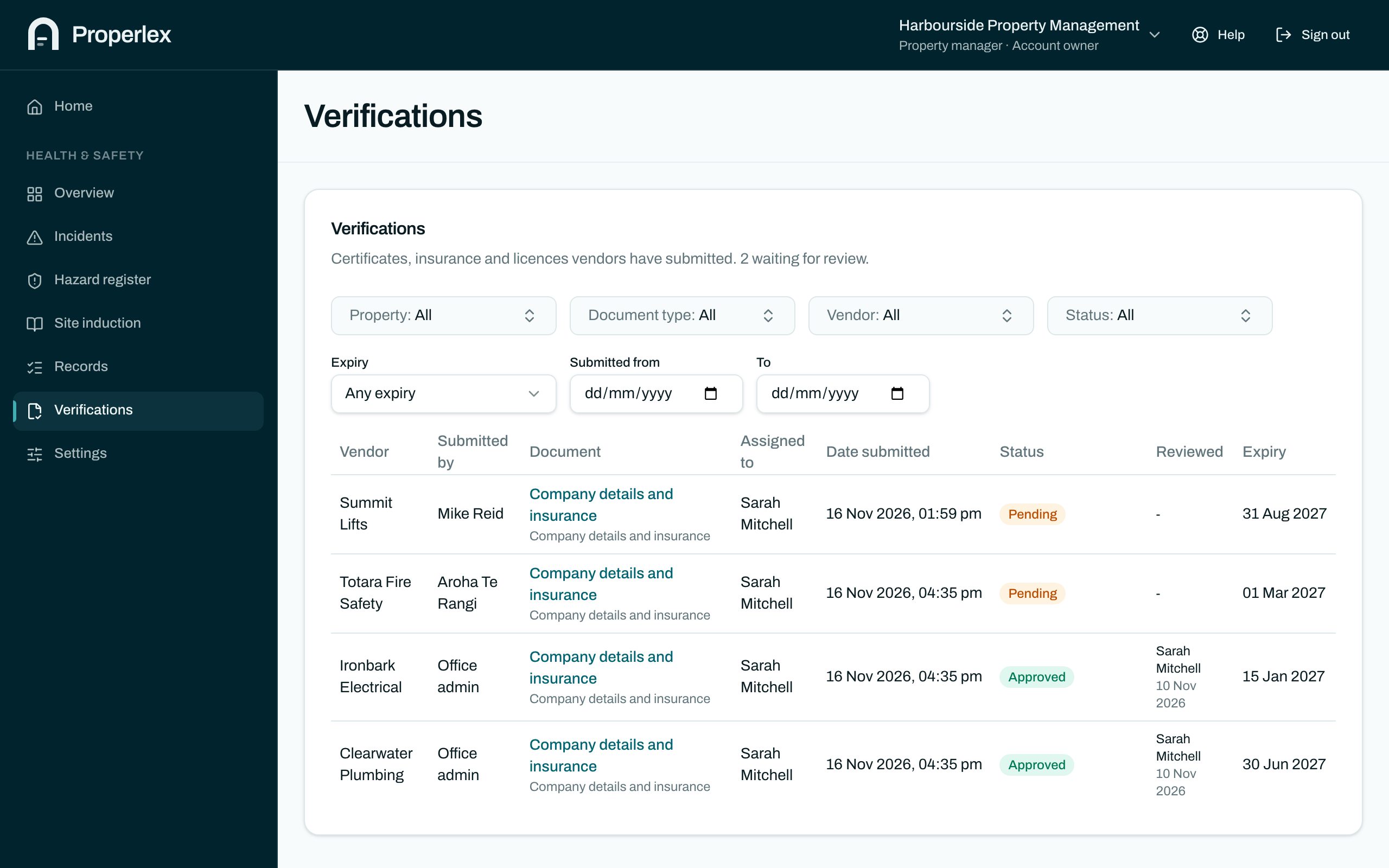
Open a document to see the file and details.
Select Approve, or Reject and say Why is it rejected?. The vendor sees your reason, so say what to fix.
Common problems
"Replaced by a newer version." The vendor has sent an updated document. Review that one instead.
I can view documents but not approve them. Your access doesn't include reviewing vendor documents. Ask an admin.
Expiring documents. Filter Expiry by Expired, Expiring within 30 days or Expiring within 90 days.
Last checked against the app on .