Reply to an InMail conversation
Go to Communications, then InMail, select a conversation, write your reply and select Send reply. Close it when it's resolved.
- For
- Property managers
InMail is your shared inbox for conversations with tenants, vendors and partners. Each conversation has a status, so your team can see what needs a reply.
Before you start
You need the Respond to conversations control to reply.
Steps
Go to Communications, then InMail.
Select a conversation. Use the filters to narrow the list by property, Type, Role, Status or Assigned to me.
Write your reply and select Send reply.
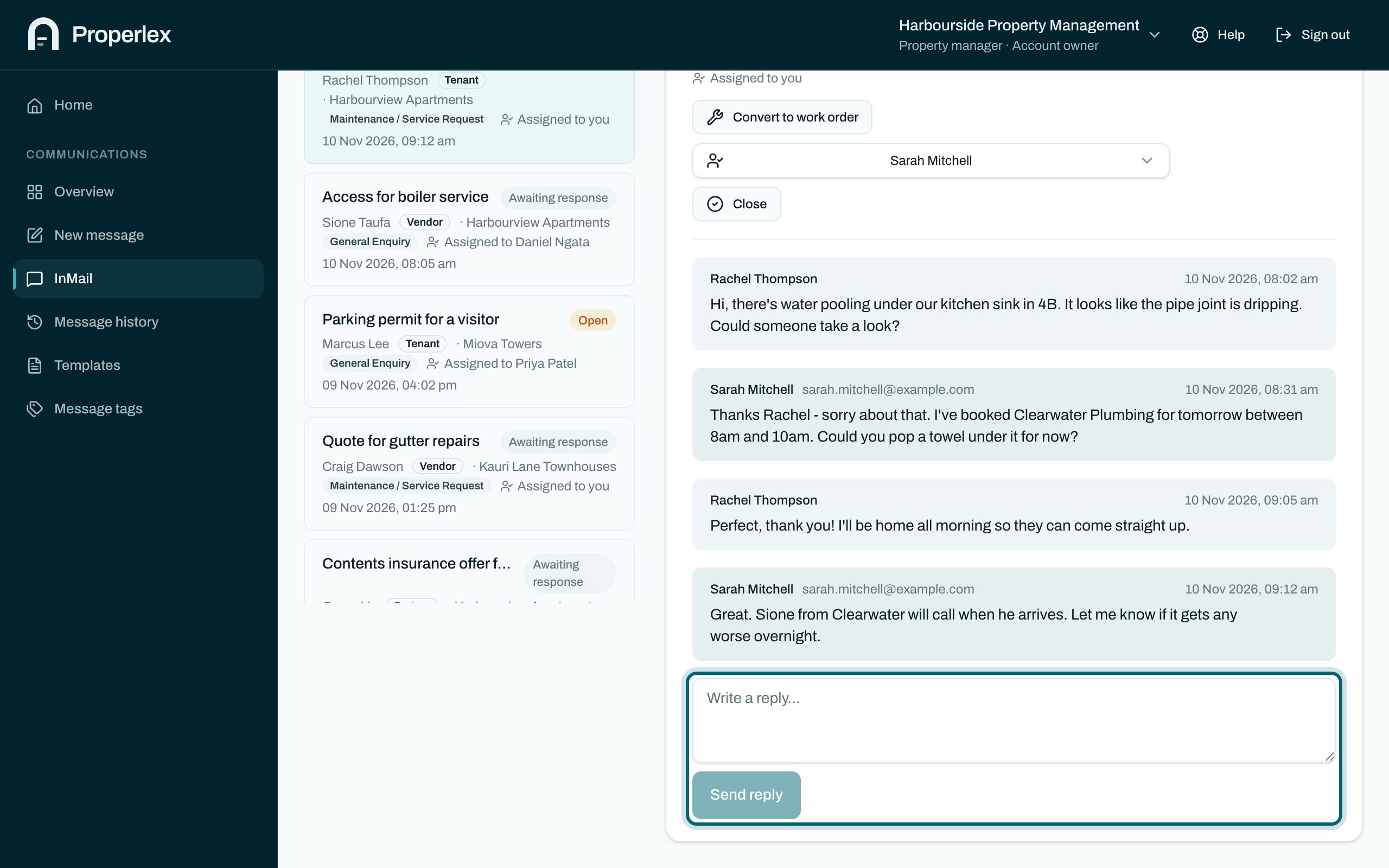
To hand it to someone else, change Assigned to.
When it's resolved, select Close. Select Reopen if it needs more work.
Conversation statuses
Unread: they've written and nobody has read it yet.
Open: you've read it, and it's your turn to reply.
Awaiting response: you replied last.
Closed: resolved.
Common problems
The reply box says Reply by SMS. That conversation came in by SMS, so your reply goes back as an SMS.
Can I save my filters? Yes. Set them up, then select Save current view and give it a name. It appears under Saved views.
Last checked against the app on .