Find your way around your portal
Your home page has a card for each thing you can do, such as Messages, Property Contacts and Report an Incident. Select a card to open it, and Home to come back.
- For
- Tenants
- Vendors
- Partners
Your portal is set up by your property manager. The cards on your home page are the things you can do at your current property.
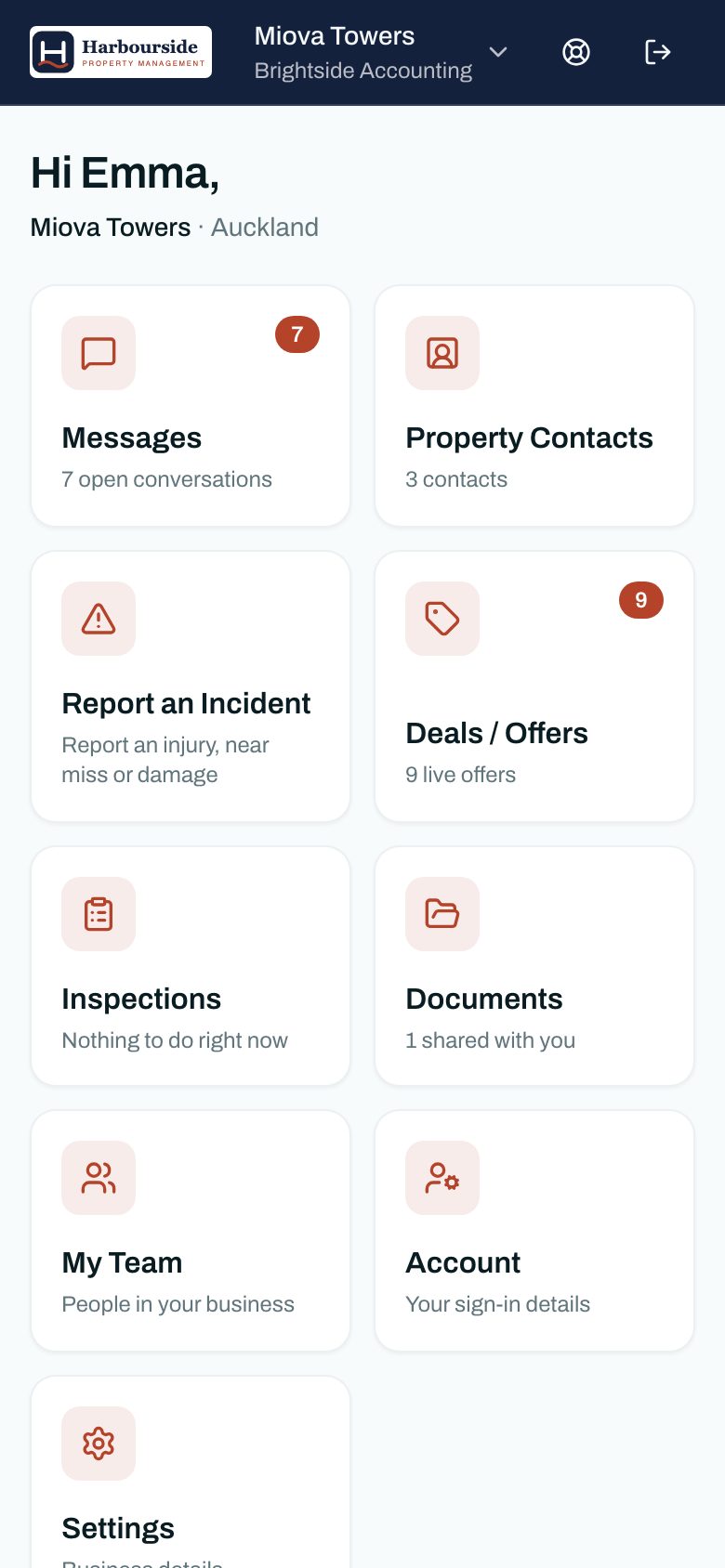
The cards you might see
Messages: talk to your property manager. See Message your property manager.
Property Contacts: who to contact at your property.
Report an Incident: report something unsafe, and follow your reports.
Deals / Offers and Events: offers and events at your property.
Documents: documents your property manager has shared.
My Team: the people at your business your property manager can contact.
Account: your name, phone number and password.
Vendors may also see Work Orders, Sign In/Out, Assets, Inspections, Certificates and Compliance. Vendors and partners may see Tenant Directory.
Getting around
Select Home in the top bar to come back to your cards.
On a phone, select Open menu for the full list.
Your property's name is at the top. Select it to switch property. See Switch property or business.
Select Help for guides, or press
?on a keyboard.
Common problems
A card I expected isn't there. Cards depend on what your property manager has switched on at your property and on your position. Ask your property manager.
"You're not connected to a property yet." Your property manager hasn't linked you to a property. Ask them to.
Last checked against the app on .