Sign off or send back a work order
When a work order is Ready to sign off, check the checklist and photos, then select Sign off to close it, or Send back with what still needs doing.
- For
- Property managers
- Needs
- Work orders switched on
When the vendor marks the work complete, it's Ready to sign off. Check it, then close it or send it back.
Before you start
You need the Create, send and sign off work orders control.
Steps
Go to Facilities Management, then Work orders, and choose Ready to sign off.
Open the work order. Check the Checklist, the Photos and the vendor's note.
If it's done, select Sign off, add a Note if you like, and confirm.
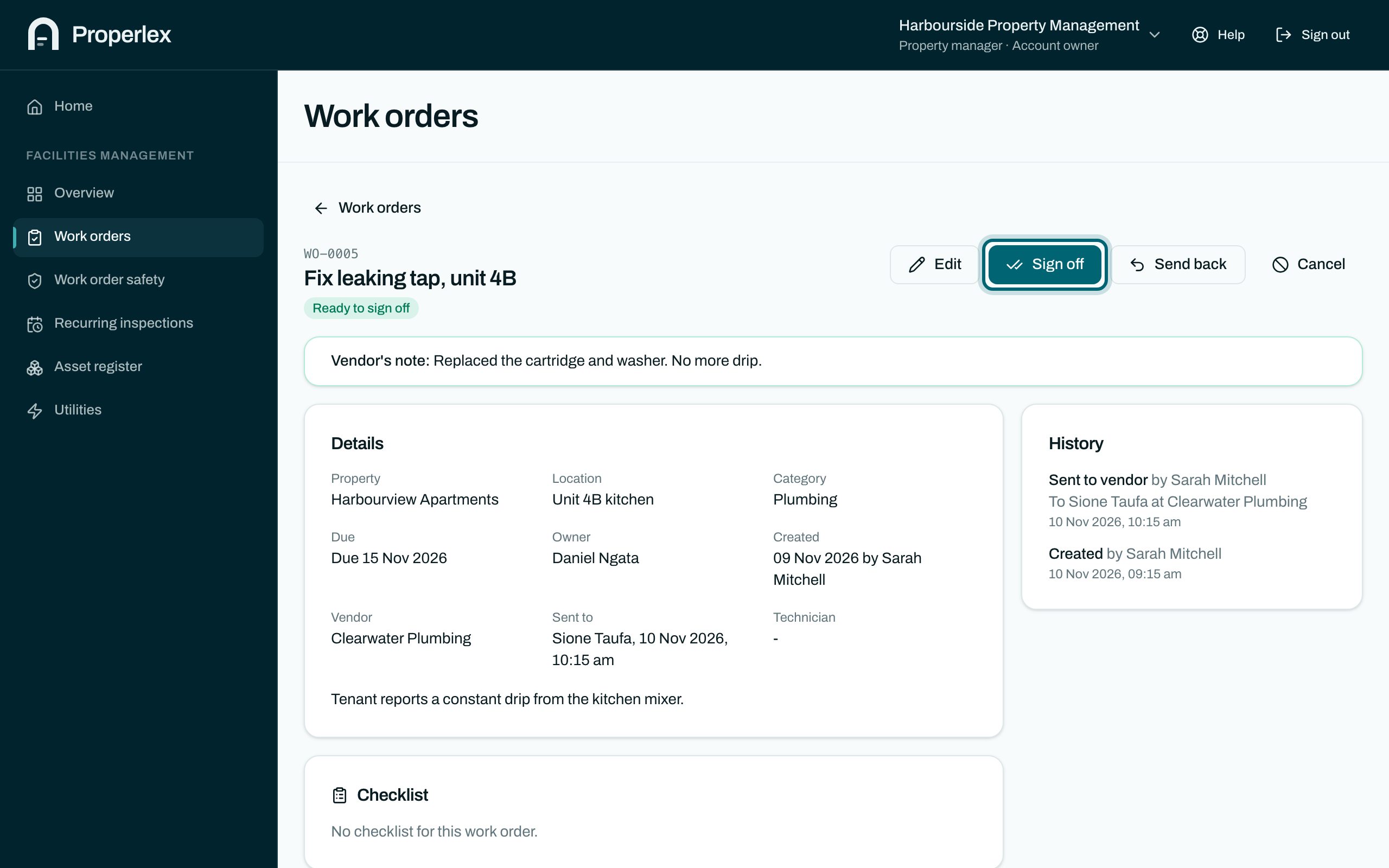
If something's missing, select Send back and say What still needs doing.
What happens next
Sign off closes the work order and tells the vendor. If a tenant asked for it, they're told in InMail that the work is done.
Send back returns it to In progress, and the vendor is emailed what still needs doing.
Last checked against the app on .