Tick off tasks and add photos
Once you've accepted a work order, select Start work, then tick off each task in the Checklist as you finish it. Select Photo on a task, or Add photos, to show the work.
- For
- Vendors
- Needs
- Work orders switched on
The checklist shows what your property manager needs done. Ticking off tasks and adding photos as you go means the job can be signed off quickly.
Steps
Open the job from Work Orders.
Select Start work when you begin. Your property manager sees it's in progress.
Under Checklist, tick each task as you finish it.
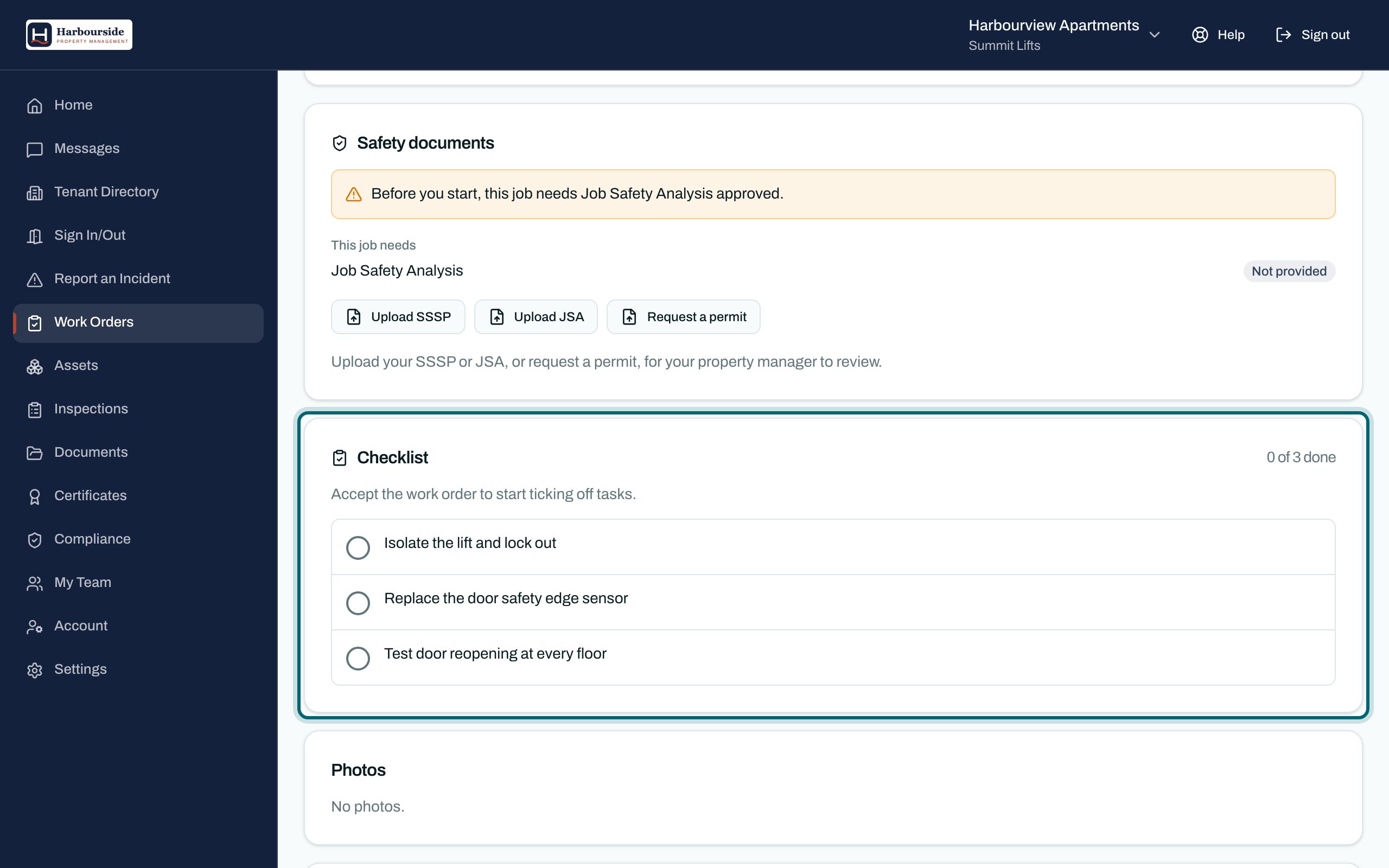
To add a photo to a task, select Photo next to it. On a phone, you can take one with your camera.
To add general photos of the finished work, select Add photos under Photos.
Common problems
I can't tick off tasks. Accept the work order first.
I added the wrong photo. Select Remove photo on it.
Last checked against the app on .