Tag messages
Go to Communications, then Message tags, to add tags such as Maintenance or Emergency. Choose a tag when you send a message, and optionally email key people whenever it's used.
- For
- Property managers
Tags sort your messages for reporting. Your workspace starts with Emergency, General, Maintenance, Marketing, Operating Hours and Team Update.
Before you start
You need to be an Admin or the Account owner to manage tags. Anyone sending a message can choose one.
Add a tag
Go to Communications, then Message tags.
Select New tag.
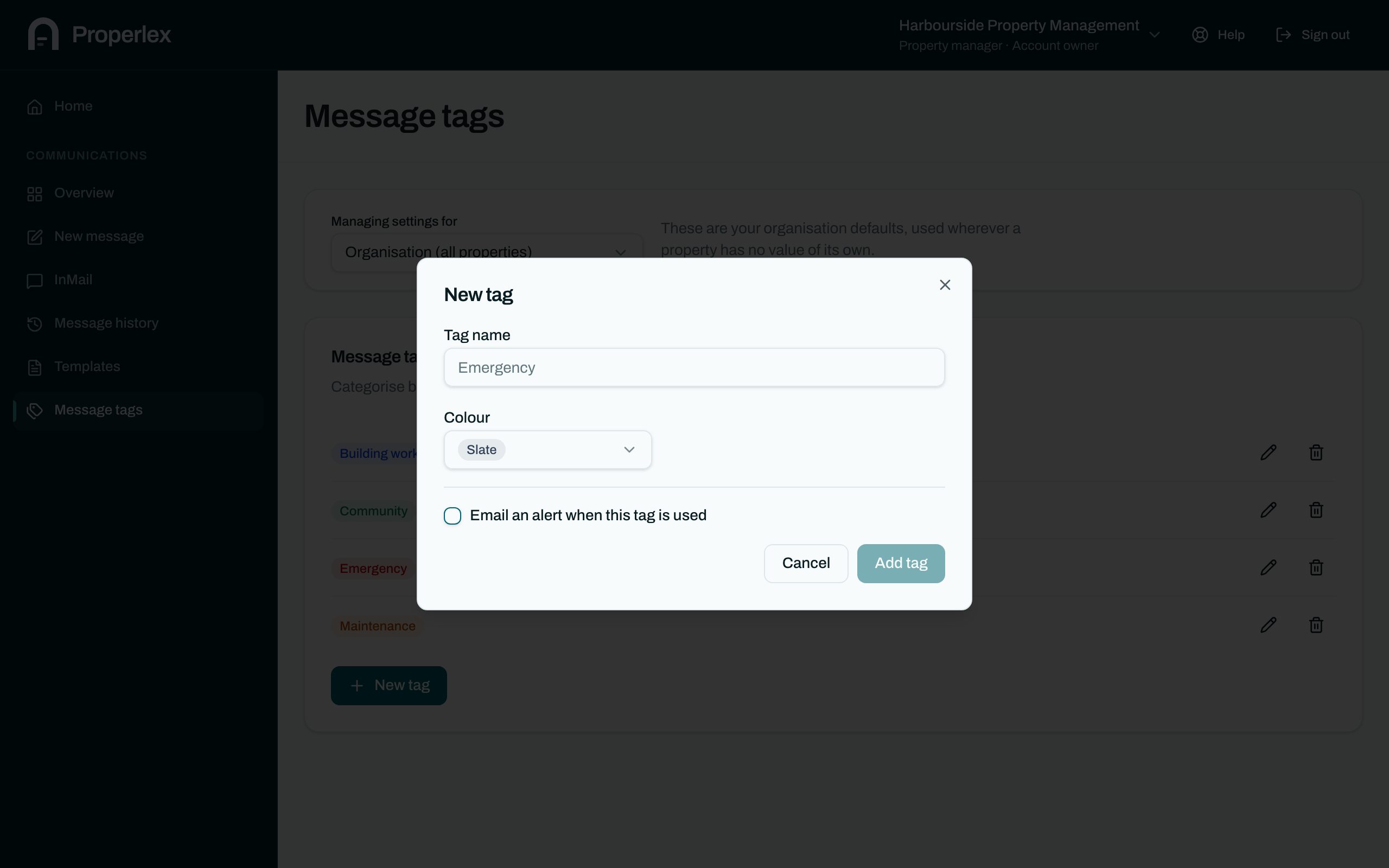
Enter a Tag name and choose a Colour.
Optional: switch on Email an alert when this tag is used, then choose the Team members and Contacts to tell.
Select Add tag.
Use a tag
When writing a message, choose it under Tag (optional).
Common problems
Can I change the tag after sending? Yes, from the message's report in Message history, if you're an admin or the account owner.
Last checked against the app on .