Review reported incidents
Go to Health & Safety, then Incidents, to see every incident reported at your properties. Open one to read the report, check whether it may need to go to the regulator, and see who's investigating.
- For
- Property managers
- Needs
- Incident reporting switched on
Incidents reported by tenants, vendors, partners and your team all arrive in one list.
Before you start
Incident reporting must be switched on for your organisation.
Steps
Go to Health & Safety, then Incidents.
Use Search incidents, Status and Property to find a report. Reports that suggest someone was seriously hurt or is still in danger are marked Needs urgent review.
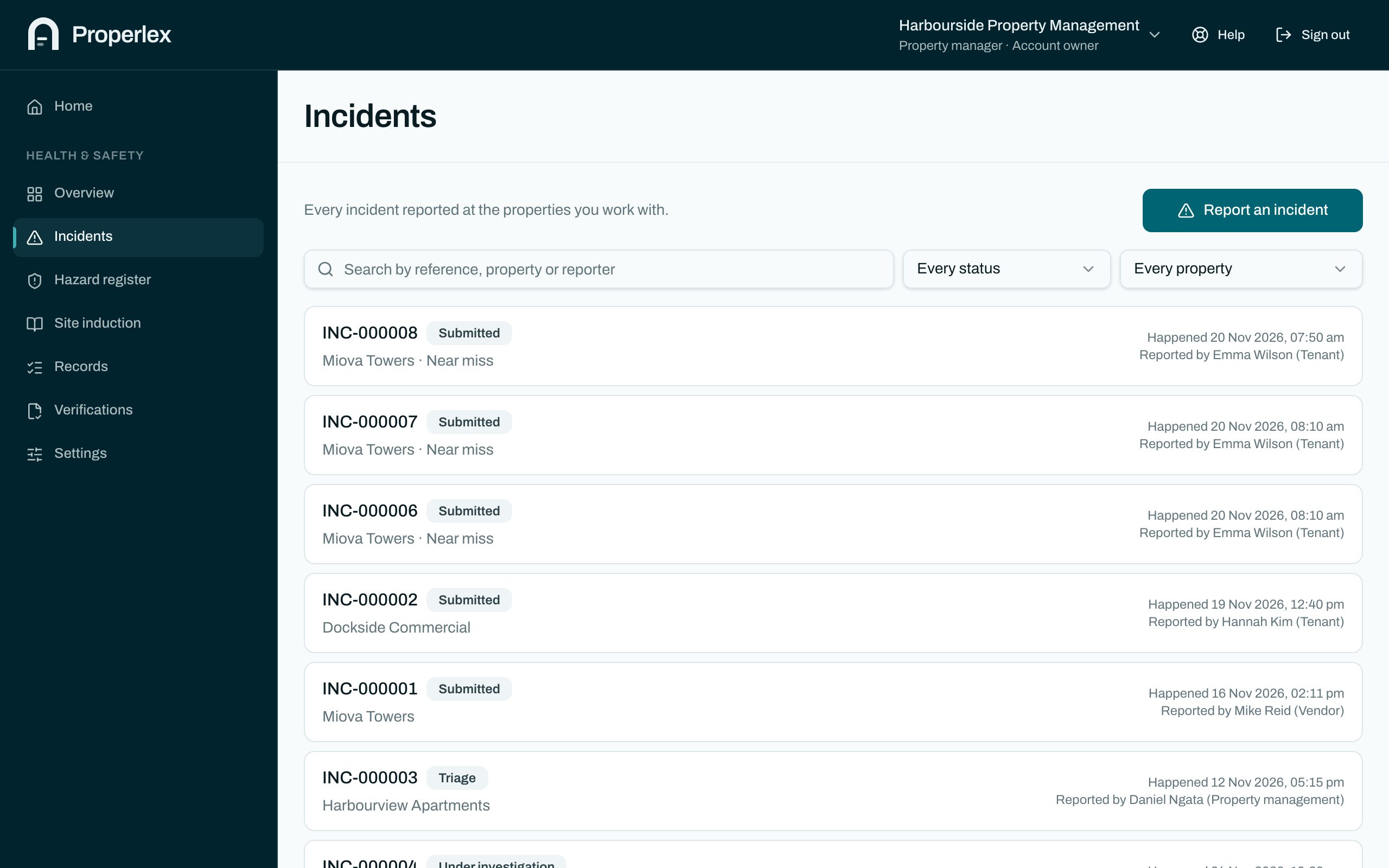
Open a report to see:
The report as submitted: when, where and what happened, the kind of incident, the people involved and the answers to the three safety questions.
Handling: the Investigator, who reported it and how to contact them.
Regulator: who to notify for this property, their phone number and how to notify them.
May need to go to the regulator
If the reporter's answers point to a serious event, the report says This may need to be reported to the regulator. Check it against the regulator's definitions straight away.
New Zealand: the regulator is WorkSafe New Zealand.
Australia: the regulator depends on the state or territory, for example SafeWork NSW or WorkSafe Victoria. The property's jurisdiction decides which is shown.
The regulator guidance in the app hasn't been reviewed by a lawyer yet. Treat it as a starting point, and check the regulator's own website when you decide whether to notify.
Common problems
"Nobody is assigned." No investigator is set for the property. See Choose who investigates incidents.
"This property's jurisdiction isn't known." Set it under Health & Safety, then Settings, so the right regulator is shown.
Last checked against the app on .