Review a completed inspection
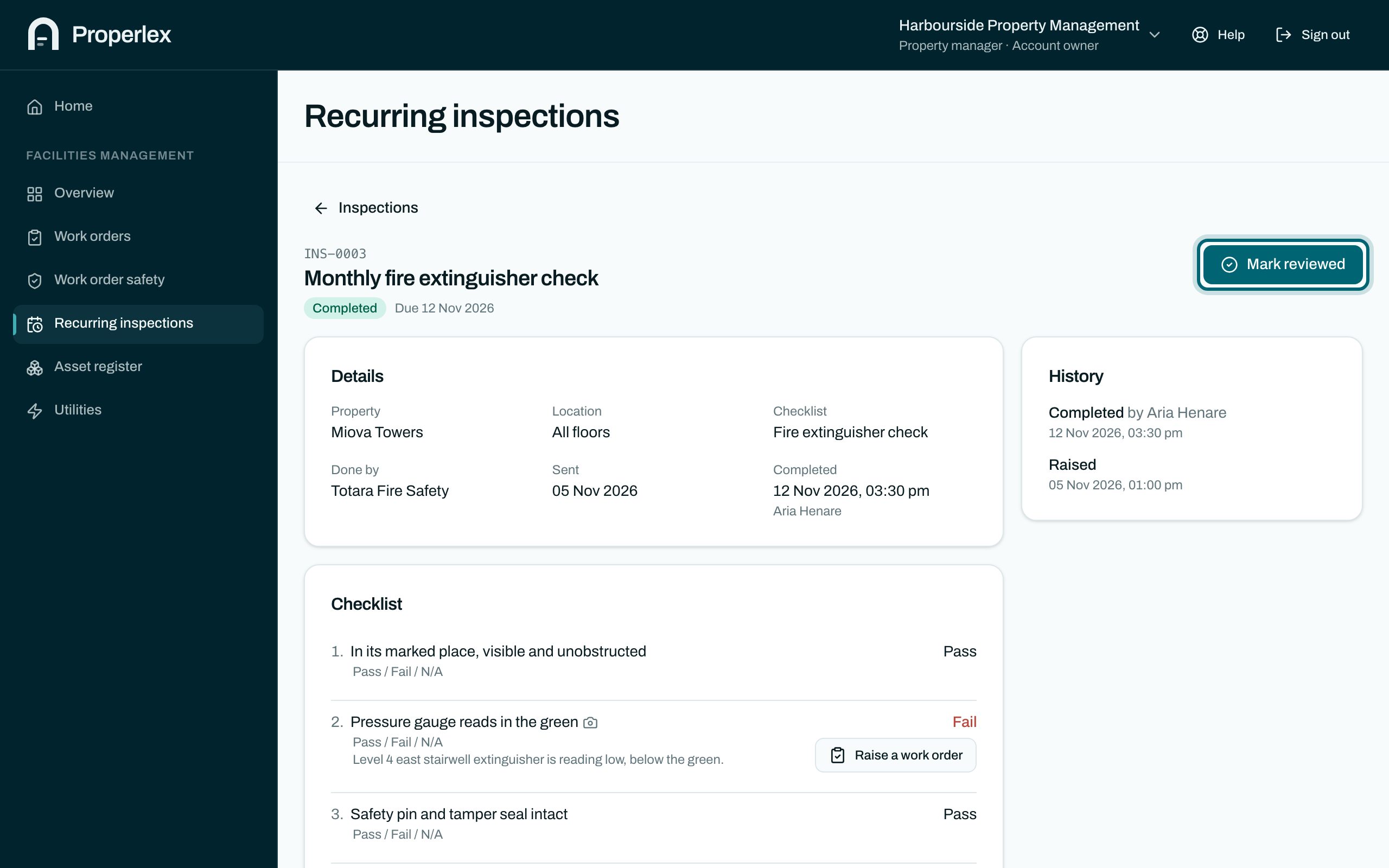
In Recurring inspections, open Inspections and select a completed one. Check the answers, photos and documents, then select Mark reviewed.
- For
- Property managers
- Needs
- Recurring inspections switched on
When a vendor or tenant completes an inspection, check it and mark it reviewed.
Steps
Go to Facilities Management, then Recurring inspections, and open Inspections.
Use Search inspections, Status and Property to find it. Statuses are To do, Completed, Missed and Cancelled.
Open it to see the Details, each Checklist answer, and Photos and documents.
If an item failed, raise a work order for it. See Raise a work order from a failed item.
Select Mark reviewed.
Cancel an inspection
If an inspection isn't needed, open it, select Cancel inspection, and say why if you like.
Last checked against the app on .