Change what a team member can do
Go to Users, then Team. Change their Access type, select Controls to fine-tune their permissions, or limit their Property access to certain properties.
- For
- Property managers
- Needs
- Admin or above
Each team member has an access type, which sets their default controls. You can change the type, adjust single controls for one person, and limit which properties they work with.
Before you start
You need to be an Admin or the Account owner.
Change their access type
Go to Users, then Team.
Under Workspace users, find the person.
Choose a new type in the Access type column.
Fine-tune their controls
Select Controls next to the person.
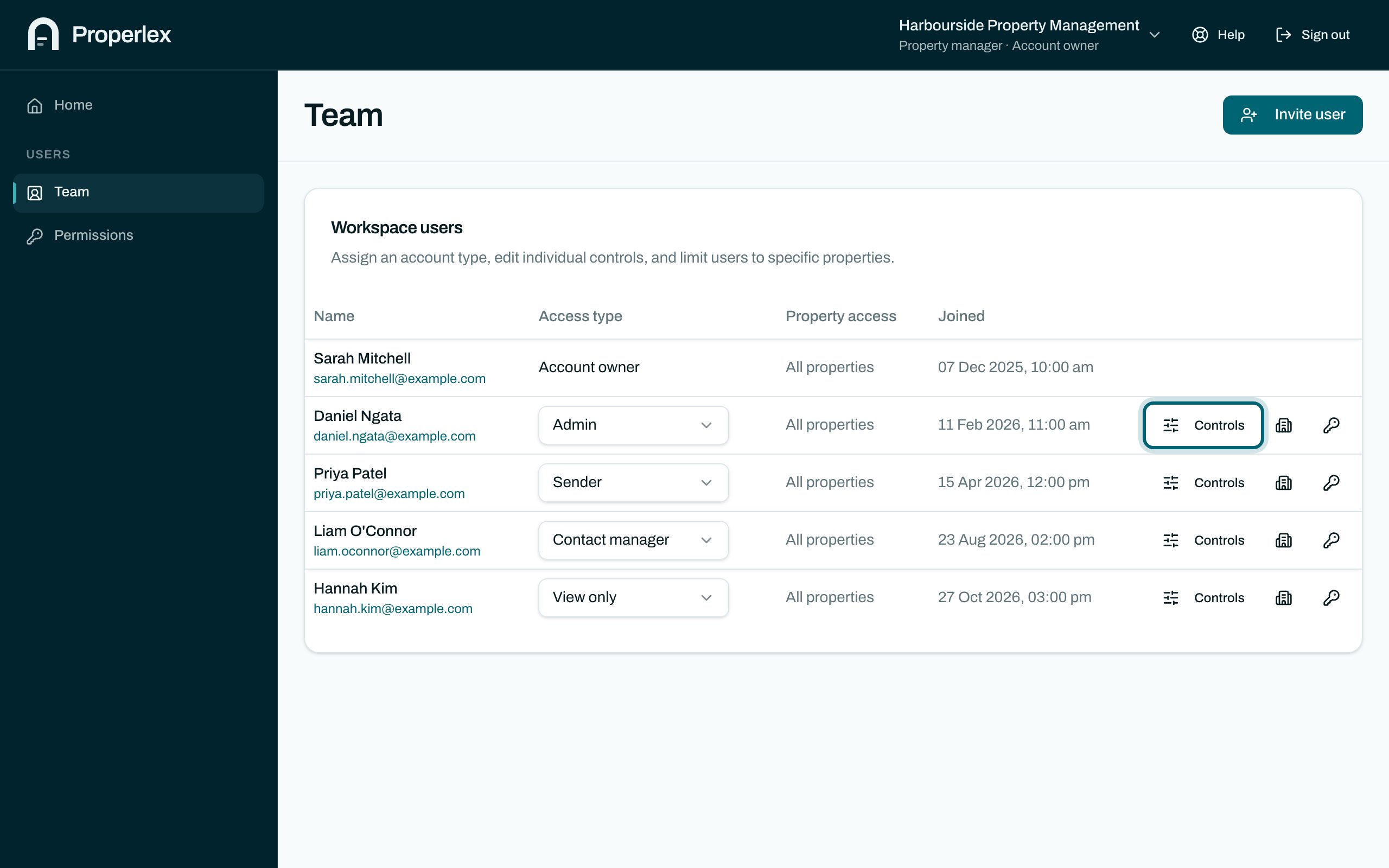
Switch individual controls on or off, then select Save.
Their access type then shows as Custom. Select Reset to account type at any time to go back to the type's defaults.
Limit them to certain properties
In the Property access column, change All properties to the properties they work with.
Select Save access.
They then only see contacts, messages and records for those properties.
Change an account type for everyone
Go to Users, then Permissions. Under Account types, edit a type to change the default controls for everyone who has it, or select New type to make your own.
Common problems
I can't delete an account type. Move everyone with that type to another type first.
Someone has forgotten their password. Select the password option next to them. You can Send reset link so they choose a new one, or Set password to set one for them.
Last checked against the app on .