Approve or reject a JSA
Open Work order safety, select Review on the document, then Approve it or Reject it with a reason the vendor will see.
- For
- Property managers
- Needs
- Work orders switched on
- Contractor compliance switched on
When a work order needs a Job Safety Analysis (JSA), a Site Specific Safety Plan (SSSP) or a permit, the vendor uploads it on the work order and it comes to your team in Work order safety. Open it, check it, then approve it or reject it with a reason.
Before you start
You need the Review vendor documents control. Each document is assigned to the property's Reviewer, but anyone with this control can decide.
Your organisation needs Work orders and Contractor compliance switched on.
Steps
Go to Facilities Management and select Work order safety. It opens on Waiting for review.
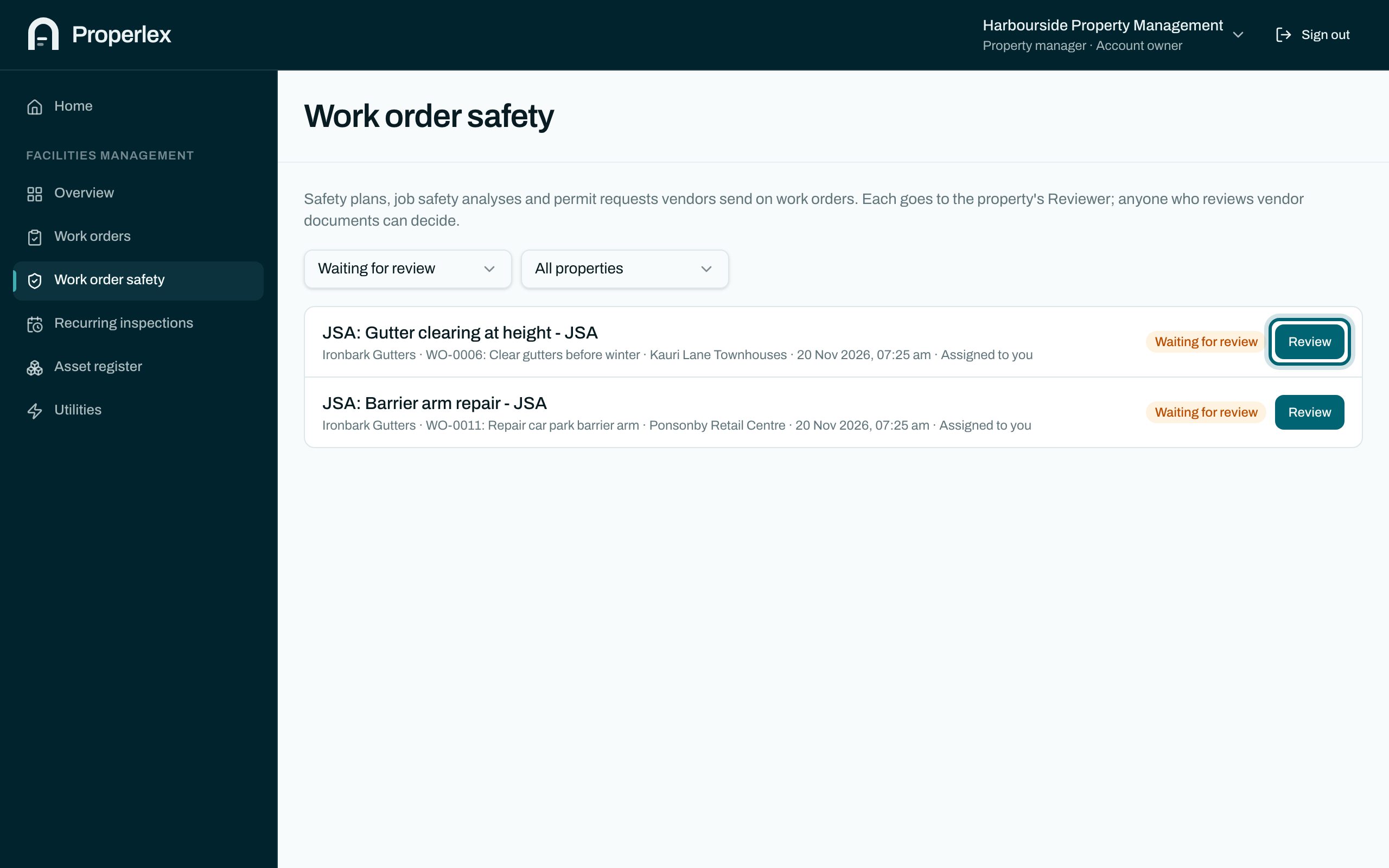
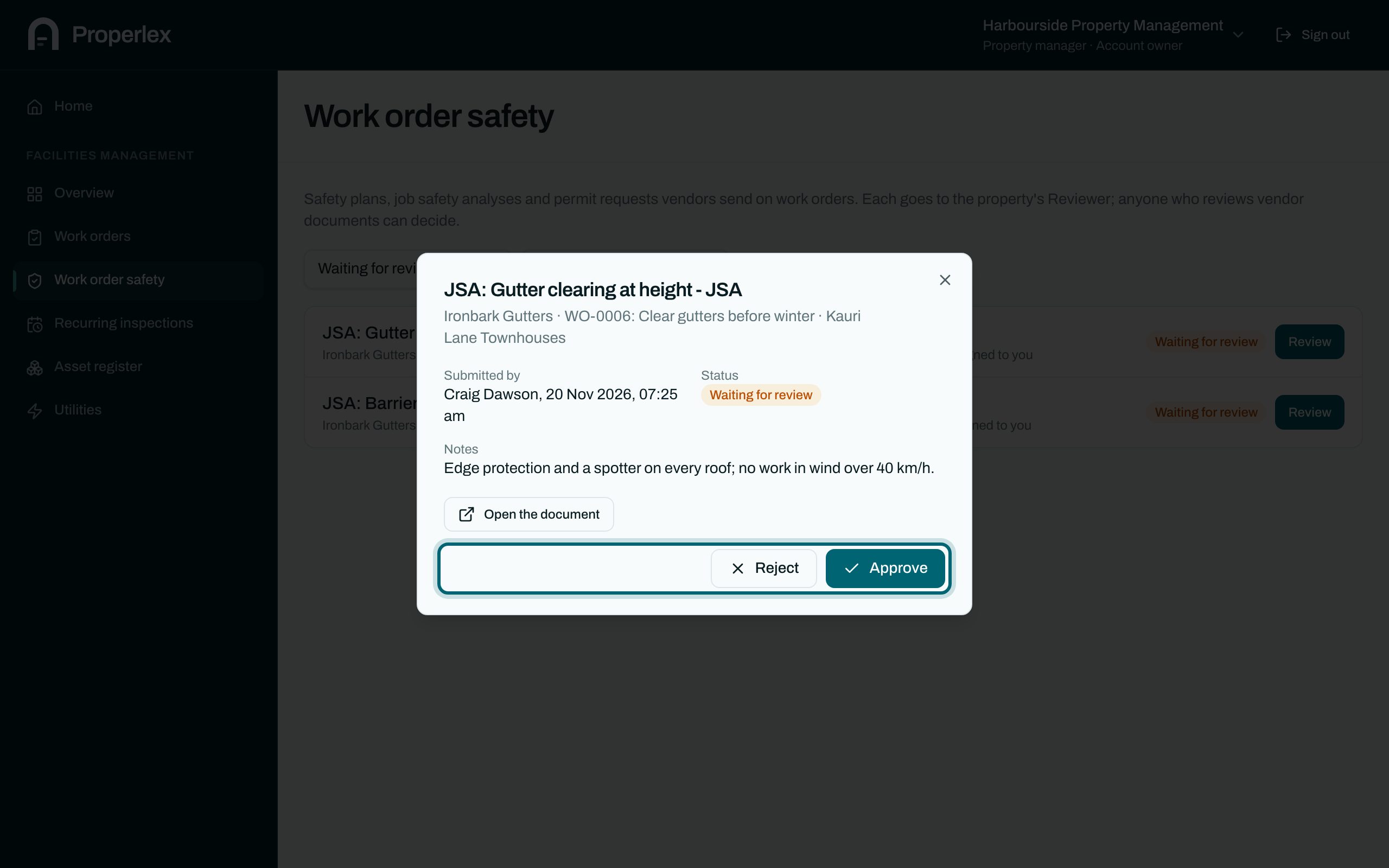
Select Review next to the document. You'll see the vendor, the work order and property, who submitted it and their notes.
Select Open the document to read the file.
Decide:
Select Approve if it covers the work safely.
Select Reject if it doesn't. Say Why is it rejected?, so the vendor knows what to fix, then select Reject again to confirm.
For a permit, you can also set the dates it's Valid from and Valid to and add Conditions (for example "Fire watch for 60 minutes after hot works finish") before selecting Approve permit.
What happens next
The vendor is emailed your decision, with your reason if you rejected it, and sees the new status on the work order.
After a rejection, the vendor can upload a new version for you to review.
Approving or rejecting doesn't start or stop the work. If the vendor starts or completes the work without the documents approved, you're warned on the work order and the work order's owner is emailed.
Find earlier decisions
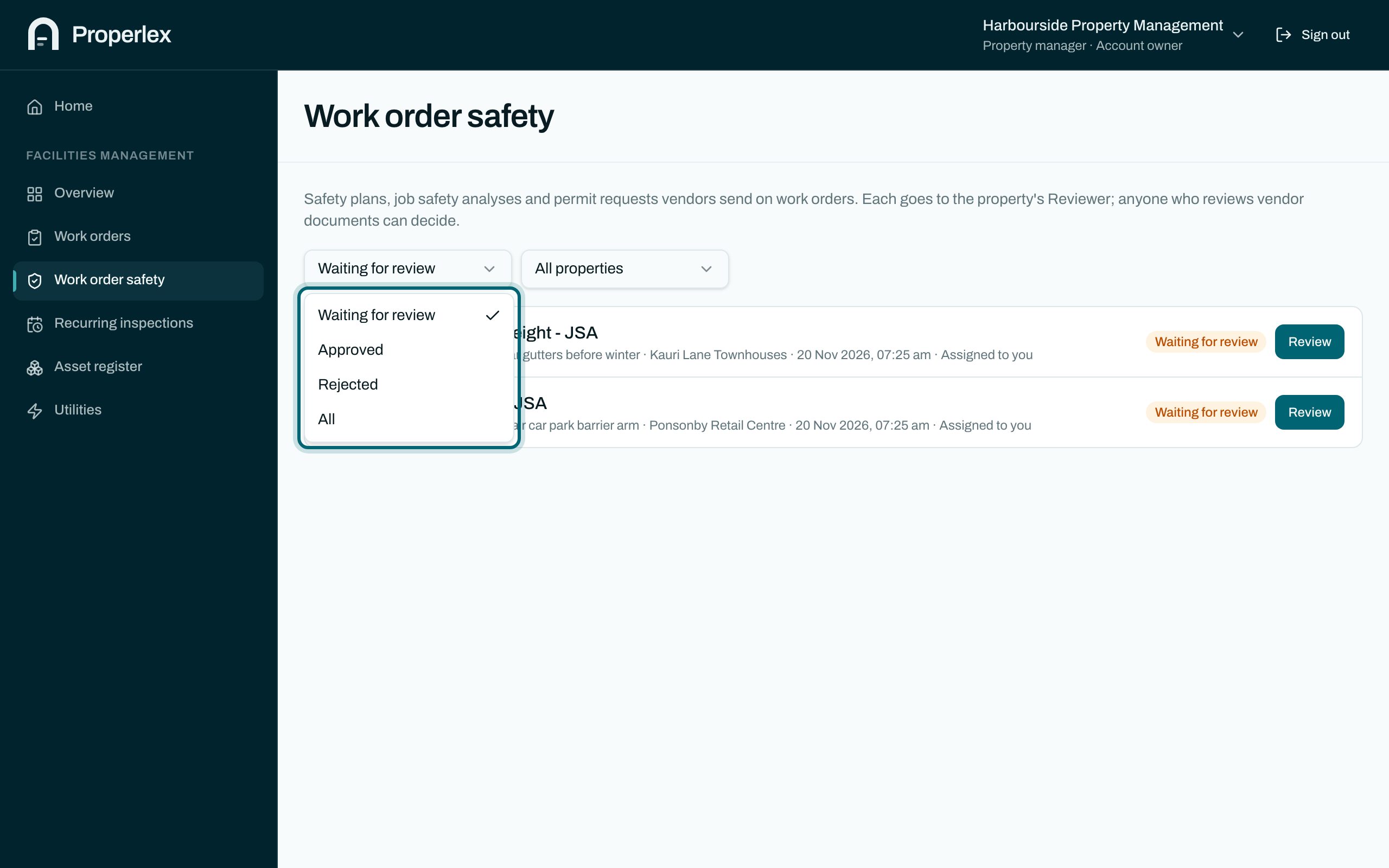
Change Waiting for review to Approved, Rejected or All to see documents you've already decided. Use All properties to narrow it to one property.
Common problems
I can't see Work order safety. You need the Review vendor documents control, and Work orders and Contractor compliance need to be switched on for your organisation. Ask an admin on your team.
I approved or rejected the wrong document. A decision can't be changed once it's made. Contact the vendor if anything needs correcting; they can upload a new version from the work order for you to review.
The vendor says they uploaded a JSA but it isn't here. Check All and the property filter. If they withdrew it before you reviewed it, it shows as withdrawn and they'll need to upload it again.
Last checked against the app on .